![Insights_horiz-1.png]](https://support.elumenconnect.com/hs-fs/hubfs/Insights_horiz-1.png?height=40&name=Insights_horiz-1.png)
The Assessment Plan Status Dashboard
The Assessment Plan Status Dashboard gives coordinators a consolidated, top-down view of an assessment plan's progress, including the status of individual measures, upcoming assessment terms, and deadlines. Coordinators can select a subset of measures, add notes, and build a meeting agenda to streamline the data collection and review process.
Tracking cycle progress helps coordinators stay informed about where an assessment plan stands at any point during the cycle — from whether qualitative measures have been authored and submitted to whether data collection terms for course-embedded assessments have been completed.
New in this release: The Assessment Plan Status Dashboard is now available, providing coordinators with a structured three-tab view of authoring and review status, data collection progress, and meeting agenda management across all measures in an assessment plan.
Access Track Cycle Progress
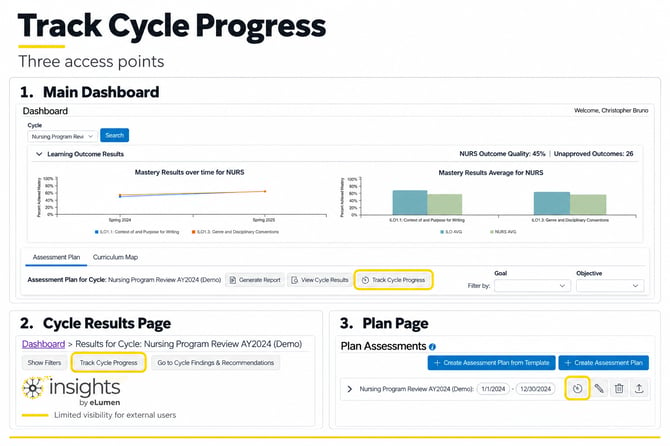
The Track Cycle Progress button can be accessed from three places in Insights:
- Main Dashboard — Click Track Cycle Progress to the right of the View Cycle Results button on the AP/Cycle dashboard. This allows coordinators to quickly evaluate progress without leaving their existing workflow.
- Cycle Results Page — The same button appears on the results page (accessed via View Cycle Results). This is useful for answering questions like "are we still collecting data for this measure?" if results do not fully align with expectations.
Note: Only plan-level reviewers and the approver can see this button on the results page, allowing external users such as a dean to view status without full Insights access. - Plan Page — Each plan in the plan list has a Track Cycle Progress icon button, giving coordinators quick access to a specific plan's status without navigating to the main dashboard.
The Assessment Plan Status Dashboard
Once opened, the dashboard is organized into three tabs:
- Authoring & Review — Status of qualitative measures and their authoring and submission progress
- Data Collection Status — Progress of quantitative measures and assessment term completion
- Meeting Agendas — Tools for building, publishing, and printing structured meeting agendas
Measures are grouped and filtered by Section by default. If a plan has the Goals & Objectives option enabled, coordinators can also group and filter measures by Goals and Objectives across all three tabs. If Goals & Objectives are not enabled, the Group By toggle is not displayed.
Tab 1: Authoring & Review
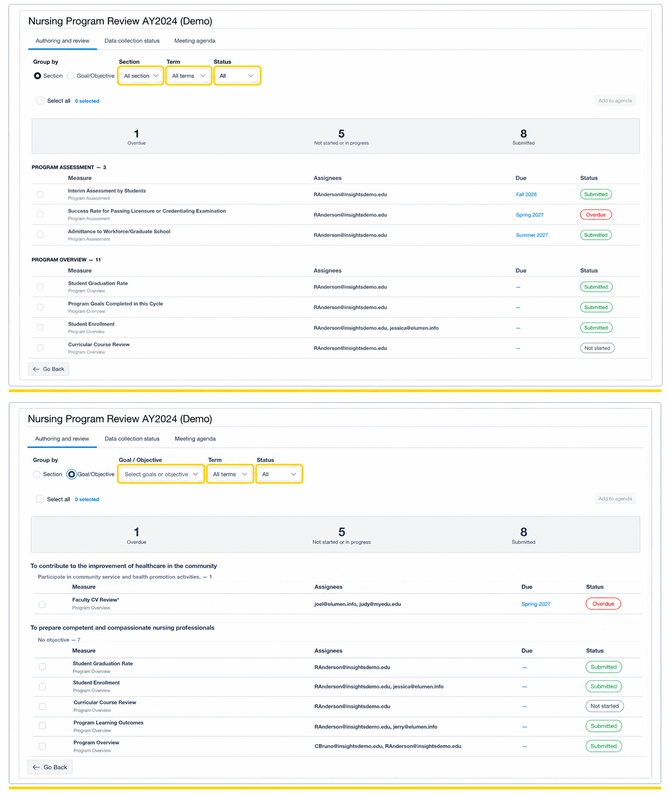
The Authoring & Review tab provides a top-down view of all qualitative measures in the assessment plan, showing their authoring and submission status.
Summary Card
At the top of the tab, a summary card displays:
- Number of qualitative measures that are past due
- Number of qualitative measures that have not been published
- Number of qualitative measures that have been published
Measures List
Measures are organized into two sections:
- Needs Attention — Measures that require action
- Complete — Measures that have been submitted
Each measure in the list displays:
- Assignee — The email of the person responsible for the measure
- Name and Section — The measure name and the assessment plan section it belongs to
- Due Term — The due term, if one has been set
- Status — One of the following:
- Not Started — The measure has not been started by the assignee
- In Progress — The measure is currently being drafted
- Submitted — The measure has been published and submitted
Filters
- Assessment Plan Section
- Due Term
- Status
- Goal/Objective
💡 Tip: Use the Authoring & Review tab to identify qualitative measures that are in progress so reviewers are not confused when they do not yet see a response on the results page.
Tab 2: Data Collection Status
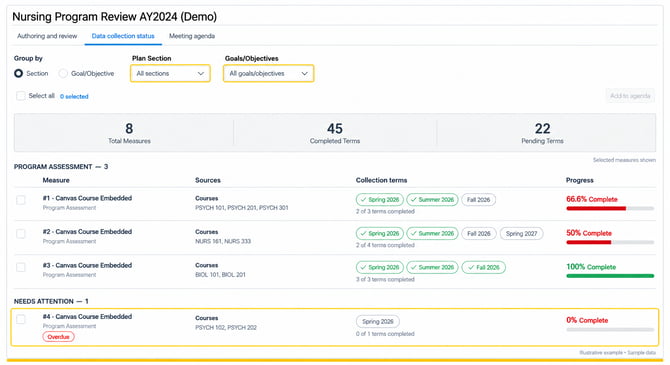
The Data Collection Status tab provides coordinators with a view of progress across all quantitative measures in the plan, including course-embedded assessments. Progress is measured as the percentage of designated assessment terms that have ended for each measure.
Example: If a course-embedded measure had assessments in Fall 2025, Spring 2026, and Fall 2026, and it is currently Summer 2026, the measure would show as 66.6% complete.
Important: A term showing as complete indicates that the term has ended, not necessarily that data has been collected.
Summary Card
At the top of the tab, a summary card displays:
- Total quantitative measure count
- Completed assessment term count
- Pending assessment term count
Due Dates and Deadline Tracking
Measures can be assigned due dates to help coordinators communicate expectations and manage the assessment cycle.
How due dates work:
- Coordinators set a due date when creating or editing a measure
- Assignees see the deadline so they know when their contribution is expected
- Past due measures automatically appear in the "Needs Attention" section
- The summary card displays a count of past-due items for quick reference
Benefits for coordinators:
- Quickly identify which measures need follow-up
- Prioritize reminders based on overdue status
- Keep participants accountable and informed
- Stay on track with assessment cycle deadlines
Measures List
Each measure in the list displays:
- Name and Section — The measure name and the assessment plan section it belongs to
- Course Codes — The list of courses from which data is being collected
- Assessment Terms — Each term displayed as a pill indicator:
- 🟢 Green pill — Term is complete
- ⚫ Grey pill — Term is not yet complete
- Progress Percentage — Overall completion percentage based on ended terms
Filters
- Plan Sections
- Goals and Objectives
💡 Tip: Use the Data Collection Status tab to monitor which terms are still pending and to plan follow-up with faculty if grading or data submission is lagging.
Tab 3: Meeting Agendas
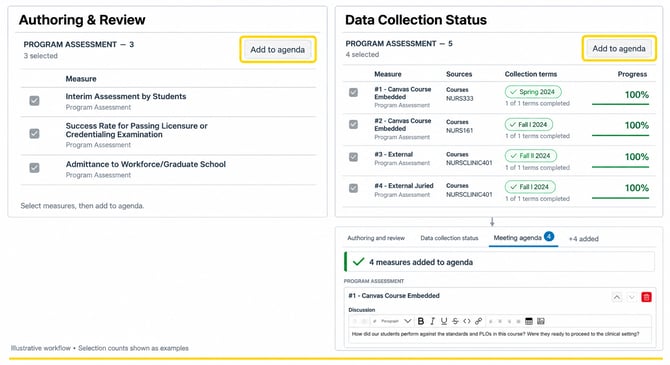
The Meeting Agendas tab allows coordinators to select measures from either of the other tabs, add rich text notes, and build a structured agenda for an upcoming assessment review meeting.
Building an Agenda
- Navigate to the Authoring & Review or Data Collection Status tab
- Select the measures to be discussed using the checkboxes to the left of each measure
- Click Add to Agenda — a success notification will confirm how many items were added
- Repeat for measures in the other tab if needed. Note: Qualitative and quantitative measures must be added separately, but an agenda can contain a mix of both.
- Navigate to the Meeting Agendas tab — a badge on the tab tracks the total number of items currently in the agenda
Configuring the Agenda
Once measures have been added:
- Enter a Name for the agenda (required)
- Select a Meeting Date (defaults to the current date)
- Measures are organized by the plan's grouping mechanism — by Section (default) or by Goal/Objective if the plan has Goals & Objectives enabled
- Reorder sections using the up and down arrow icon buttons
- Reorder measures within sections as needed — all order is saved through publish and print
- Remove measures using the red trash icon if added inadvertently
- Add optional notes to each individual measure using the rich text area provided
- Click Clear in the top right and confirm to remove all measures and start over
Publishing and Printing
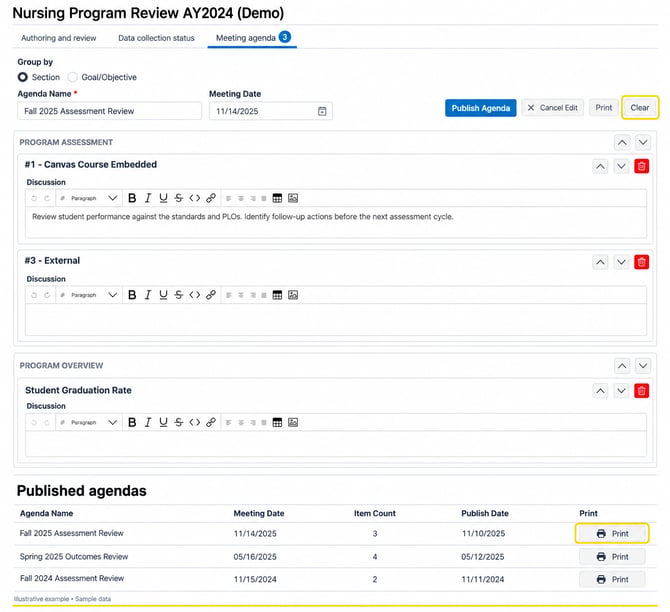
- Click Publish Agenda to finalize the agenda. The building interface will clear, and a new entry will appear in the published agendas list.
- Each published agenda displays: the agenda name, meeting date, number of agenda items, and date published.
- Click Print on any published agenda to open a PDF view in a new tab with the browser print prompt. The agenda name appears as the main header, and each measure displays its relevant data and any added notes.
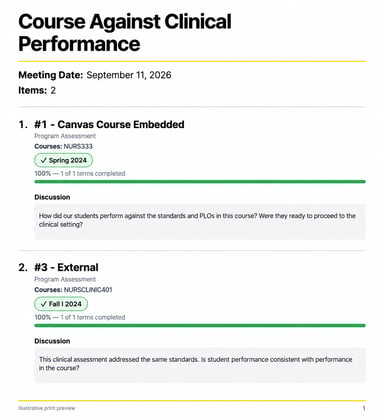
- An agenda can also be printed while in progress (without publishing) as long as all required fields are populated.
Important: Published agendas are moment-in-time snapshots. Changes made to a plan or its measures after publishing will not be reflected in previously published agendas. Editing or deleting published agendas is not currently supported.
Grouping Options
Measures in the Assessment Plan Status Dashboard are grouped and filtered by Section by default.
If a plan has the Goals & Objectives option enabled, coordinators can also group and filter measures by Goals and Objectives across all three tabs. When an agenda is printed or published with goal-based grouping, each measure's associated goals and objectives are included in the printed output.
If a plan does not have Goals & Objectives enabled, measures are grouped by section only and the Group By toggle is not displayed.
Best Practices
✅ Access Track Cycle Progress regularly throughout the cycle — not just at the end — to identify issues early and keep data collection on schedule.
✅ Use the Authoring & Review tab to check the status of qualitative measures before sending reminders to assigned participants.
✅ Use the Data Collection Status tab to understand which assessment terms have ended and which are still pending for course-embedded measures.
✅ Set due terms on measures before using the dashboard so the Authoring & Review summary card can accurately reflect past due items.
✅ Build meeting agendas in Insights rather than external tools to keep a record of discussion items and notes directly tied to the assessment plan.
✅ Add notes to individual measures in the agenda to provide context for committee members before the meeting.
✅ Include a mix of qualitative and quantitative measures in agendas to facilitate holistic discussions about assessment progress.
✅ Print agendas in advance of review meetings so all participants have a shared reference document.
✅ Treat published agendas as moment-in-time records — document any changes or updates to the plan after publishing in the measure notes.
✅ Use the Group by Goals & Objectives option when your plan is goal-driven to keep agenda discussions aligned with institutional priorities.