![Insights_horiz-1.png]](https://support.elumenconnect.com/hs-fs/hubfs/Insights_horiz-1.png?height=40&name=Insights_horiz-1.png)
Adding Images and Instructions to Assessment Measures
When creating sections and measures in your Assessment Plan, you can enhance clarity and engagement by incorporating rich text, links, and images.
Where to Add Images
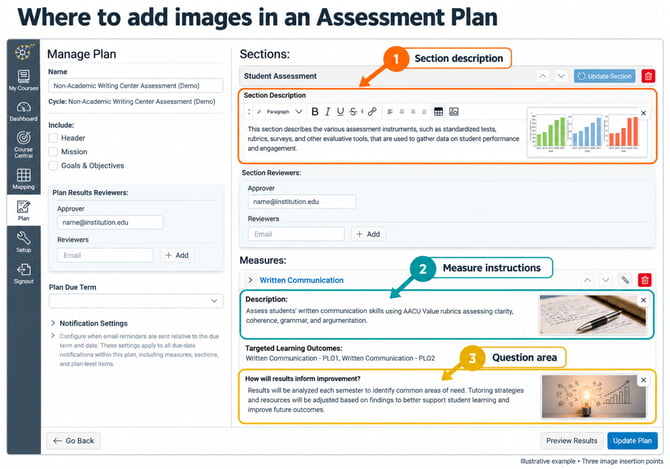 You can add images in the following areas:
- Section Descriptions — Add images to section-level instructions to provide visual context for all measures within that section
- Measure Instructions/Assignment Descriptions — Include images to clarify assignment expectations, show rubric criteria, or demonstrate grading workflows
- Qualitative Measure Questions — Attach images to specific questions to provide visual prompts or examples
Types of Images to Include
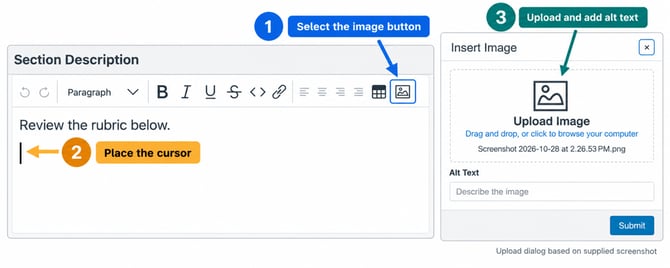 Effective images for Assessment Plans include:
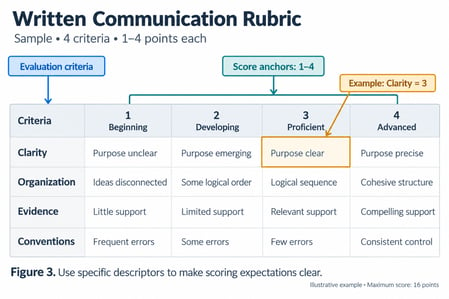
- Rubric examples — Screenshots showing sample rubrics, rating scales, and score anchors
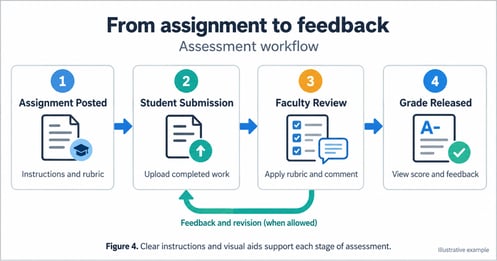
- Assignment workflow diagrams — Visual representations of how students will submit work and how it will be evaluated
- Grading guidelines — Annotated examples showing strong, proficient, and developing student work
- Process flowcharts — Diagrams explaining the assessment and review process
- Program standards or criteria — Visual representations of learning outcomes or competency frameworks
- Canvas assignment examples — Screenshots showing how the assignment will appear to students in Canvas
Image Specifications
| Specification | Recommendation |
|---|---|
| File Format | PNG or JPG |
| Resolution | 150-300 DPI (72 DPI minimum for screen display) |
| Dimensions | 600-1200 pixels wide; maintain aspect ratio (4:3 or 16:9 preferred) |
| File Size | Keep under 500 KB for optimal loading performance |
| Color Mode | RGB for screen display |
Images in Your Final Report
When your Assessment Plan is finalized and reports are generated, images are included in the assessment documentation and reports. Understanding how images appear in your final report ensures they maintain quality and serve their intended purpose.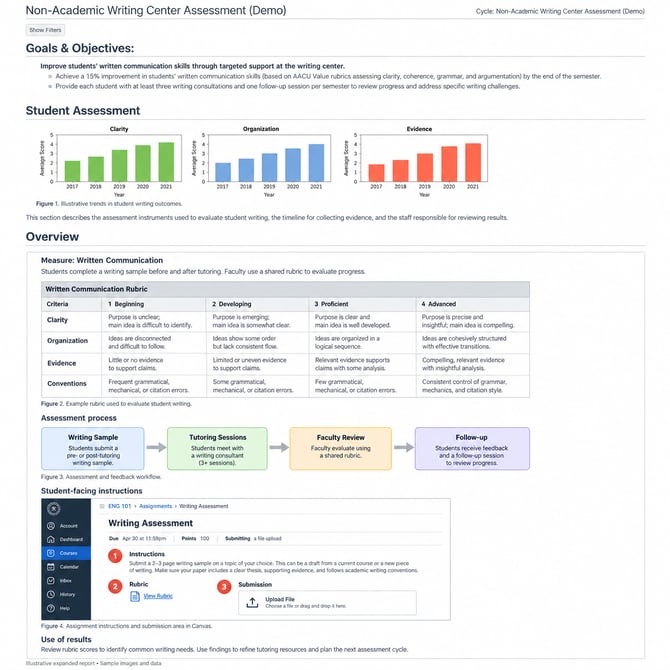
How Images Appear in Reports
When you generate your Assessment Plan report, all embedded images will be included:
- Images in section descriptions appear at the top of each section
- Images in measure instructions display with the measure details
- Images in question prompts appear with the corresponding question
- All captions and alt text are preserved for reference
Considerations for Final Reports
Print and Digital Viewing
- Ensure images are sized appropriately for both screen display and printed documents
- High-resolution images (150-300 DPI) maintain clarity in printed reports
- Test report export to verify images don't exceed page margins
File Organization
- Image file names should be descriptive and consistent (e.g., "Rubric_CriticalThinking_2024.png")
- Maintain all original image files for future edits and report regeneration
- Keep organized folder structure for easy image management and updates
Accessibility in Reports
- All alt text is included in exported reports for accessibility compliance
- Screen readers will properly interpret images with descriptive alt text
- Ensure reports meet institutional accessibility standards
Updating Images for New Reports
If you need to revise or replace images in your Assessment Plan:
- Edit the original Assessment Plan by removing the old image
- Insert the new image in the same location
- Regenerate your report to include the updated image
- Verify image quality and positioning before finalizing the report
Best Practices for Images
✅ Add captions — Include brief, descriptive captions below or adjacent to images to explain their purpose and context
✅ Use alt text — Provide descriptive alt text for all images to ensure accessibility for screen reader users. Example: "Rubric showing four criteria for evaluating critical thinking with score anchors from 1-4"
✅ Highlight key areas — Use boxes, arrows, or annotations to draw attention to important elements within images
✅ Show real examples — When possible, use actual rubrics, assignments, or student work samples rather than generic illustrations
✅ Maintain consistency — Use consistent styling, fonts, and colors across images to create a cohesive look
✅ Keep images relevant — Only include images that directly support understanding of the assessment measure; avoid decorative images that distract from the content
✅ Test visibility — Preview images in the Assessment Plan to ensure they display clearly and don't exceed the content width