![Insights_horiz-1.png]](https://support.elumenconnect.com/hs-fs/hubfs/Insights_horiz-1.png?height=40&name=Insights_horiz-1.png)
Prerequisites
Prerequisites
Before you begin, ensure you have:
-
Access to the Assessment Coordinator or Program Coordinator role in Insights
-
Canvas Credentials integration enabled in your institution
-
Client ID and Client Secret credentials from Canvas Credentials support
-
At least one active curriculum map with outcomes
-
The badging feature flag enabled by your administrator
In This Article, you learn about:
- Creating new badges in Insights
- Mapping badges to learning outcomes
- Managing badge lifecycle and settings
- Troubleshooting common badge configuration issues
Overview: Badging Workflows in Insights
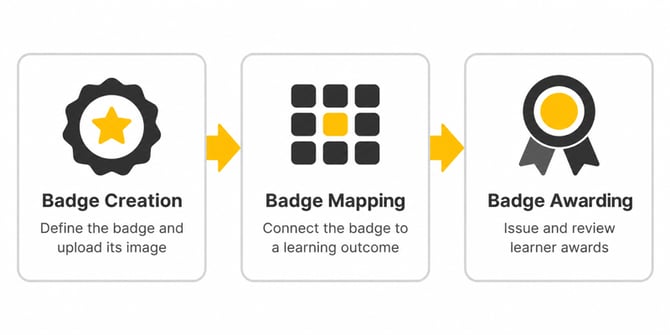 Badging in Insights is designed around three key workflows:
- Badge Creation – Create new badges or use existing badges from Parchment Digital Badges
- Badge Mapping – Link badges to learning outcomes at the ILO or PLO level
- Badge Awarding – Badges are automatically awarded when students achieve mastery
Important: Badges are only awarded for finalized results. Your institution must have result finalization enabled to use the badging feature.
Step 1: Access the Badges Section - Parchment Digital Badges
- Log in to Parchment Digital Badges and navigate to your program space
- Select My Badges from the top navigation menu
- You'll see the Issuer badges interface with options to create new badges and manage existing ones
Step 2: Create a New Badge
To learn more about creating a badge, visit How do I create a badge in Parchment Digital Badges?
Step 3: Map Badges to Learning Outcomes
Badge mappings connect badges to specific learning outcomes and determine when they're automatically awarded. Mappings are created in your curriculum map settings.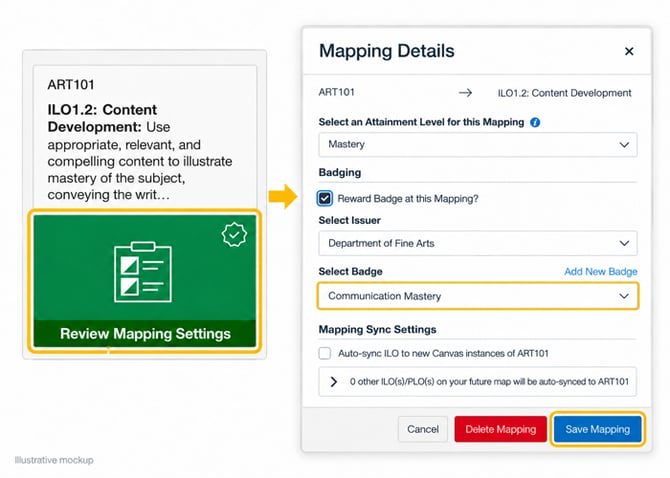
Accessing Badge Mapping Settings
- Navigate to Manage Curriculum Map in your program space
- Select the Future curriculum map (badges can only be mapped in future maps)
- Locate the outcome mapping you want to badge (e.g., CLO1 → ILO1.2)
- Click Review Mapping Settings or access the Mapping Details modal
Configuring the Badge Mapping
In the Mapping Details modal:
- Locate the Badging section (checkbox: "Reward Badge at this Mapping?")
- Check the box to enable badging for this mapping
- Select the Issuer from the dropdown (e.g., "Dandelion University - School of Computer Science")
- Select an existing Badge or click Add New Badge to create one:
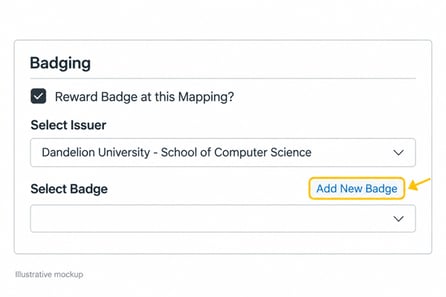
In the Add New Badge modal, enter a name and description, upload a .png or .svg file under Upload Badge Image, and click Submit. If you use a badge form with an image URL field, enter the full image URL, including https://.
- Configure Mapping Sync Settings if needed.
- Auto-Sync to New Canvas Instances: When enabled, this setting automatically syncs the ILO or PLO target to new Canvas course instances created in future terms. Note: This feature is controlled by the auto_sync_instances feature flag.
- Click Save Mapping
Important Constraints:
- A single outcome mapping (e.g., CLO1 → ILO1) can award only 1 badge
- However, the same CLO can award different badges for different outcome mappings (CLO1 → ILO1, CLO1 → PLO3, etc.)
- Multiple badges can map to the same outcome from different CLOs (e.g., CLO1 → ILO1, CLO2 → ILO1, CLO3 → ILO1)
Step 4: Transition Mappings to Current Status
Badge mappings you create in the Future curriculum map only become active when the map is rotated to Current status.
Important: Users cannot manually force badge mappings to activate. Badge mappings will automatically transition from Future → Current status when your curriculum map rotates at the start of a new term. At that time, all planned badge mappings will activate and begin awarding badges as students achieve mastery.
To prepare for map rotation: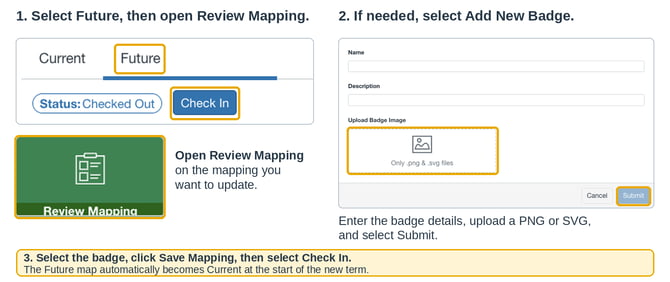
-
In Manage Curriculum Map, review your Future map and verify all badge mappings are configured correctly
-
Select Future Map to download/upload any final changes if needed
-
Check in or finalize your Future curriculum map before the new term.
-
When notified that your map is rotating (typically at term start), verify the map transition in Manage Curriculum Map
-
Once rotated, badge mappings automatically transition from Future → Current status
Only mappings with CURRENT status award badges automatically.
Step 5: Badge Award Records
Badge awards per student are stored in Canvas Credentials and are also recorded in the Insights Data Lake.
Editing and Removing Badge Mappings
Edit a Badge Mapping
- Go to Manage Curriculum Map → Future map
- Find the mapping with the badge you want to edit
- Click Review Mapping Settings
- In the Badging section, select a different badge or issuer
- Click Save Mapping to update
Remove a Badge Mapping
- Open the Mapping Details modal (same steps as above)
- Uncheck "Reward Badge at this Mapping?"
- Click Save Mapping to remove the badge
Note: Historical badge awards remain in the system for audit purposes.
Form Fields Reference
| Field | Type | Required? | Notes |
|---|---|---|---|
| Badge Name | Text | Yes | Max 255 characters; displayed to students |
| Description | Text | Yes | Max 1,000 characters; shown in Canvas Credentials |
| Badge Image | File (.png, .svg) | Yes | Recommended: 200x200px; max 2MB; For forms that request an image URL, include https://. |
| Issuer | Dropdown | Yes | Must match Canvas Credentials issuer |
| Attainment Level | Dropdown | No | Optional; can specify mastery level for the mapping |
| Auto-sync ILOs | Checkbox | No | Enables automatic sync of the ILO or PLO target to new Canvas course instances (requires auto_sync_instances feature flag) |
Tips & Best Practices
✅ Badge Naming:
- Use action-oriented names: "Critical Thinking Excellence" not "Badge 1"
- Include the competency domain for clarity
- Keep names concise (2–4 words when possible)
✅ Image Design:
- Use institutional colors and branding when appropriate
- Ensure high contrast for accessibility (WCAG AA standard)
- Test badge visibility at small sizes (60x60px minimum)
- Include institution logo or seal for authenticity
✅ Mapping Strategy:
- Start with core learning outcomes aligned to program goals
- Map badges at the ILO/PLO level (not at CLO level)
- Create and map badges in your Future map while in Beta Mode before going live
- Document which outcomes lead to badge awards for student communication
✅ Student Communication:
- Inform students about available badges and earning criteria
- Explain how to access awarded badges in Canvas Credentials
- Share guidance on exporting and sharing badges professionally
⚠ Common Mistakes to Avoid:
- Don't attempt to create multiple badges for the same outcome mapping. Only 1 badge per coordinate is supported. If multiple badges are created for the same coordinate, the last one added will be the active badge that awards.
- Don't forget to check in or finalize your future curriculum map. Future mappings won't award badges until the map is rotated to Current status. Ensure your curriculum map is finalized for the upcoming term to convert planned badge mappings to active ones upon map rotation.
- Don't use .jpg or .gif formats. Don't use .jpg or .gif formats. In Insights, upload only .png or .svg files. If a badge form asks for an image URL, include https://.
- Don't forget result finalization. Badges are only awarded on finalized results.
Troubleshooting
Badge Not Awarded Despite Student Mastery
Check the following:
✓ Was the student result finalized? (Badges require finalized results only) ✓ Does a current badge mapping exist for the outcome the student mastered? ✓ Is the badging feature flag enabled? (Check with your administrator) ✓ Was the badge mapping active on a current curriculum map during the term in which the result was recorded? ✓ Is Canvas Credentials connectivity working? (Check with your IT department)
Resolution: Review your curriculum map and ensure mappings are in Current status. Verify that the badge mapping was active during the term when the result was recorded.
Badge Not Showing in Canvas Credentials
Possible Causes:
- Badge award may still be processing (can take a few minutes asynchronously)
- Canvas Credentials API may have a connection issue
- Student email address not configured correctly in Canvas
Resolution: Wait 5–10 minutes and refresh. If the badge still doesn't appear, contact your Canvas Credentials support team.
Cannot Create a New Badge
Check: ✓ Do you have the Assessment Coordinator or Program Coordinator role? ✓ Are your Canvas Credentials API credentials valid? ✓ Is the issuer configured in your Insights environment?
Resolution: Contact your Insights administrator to verify API credentials and issuer setup.
Wrong Badge Awarded
Verify: ✓ Was the badge mapping active on a current curriculum map during the term in which the result was recorded? ✓ Confirm the badge mapping configuration matches your intent
Resolution: Review badge mapping settings and verify the outcome version and issue date align with student results.
Next Steps
Before Going Live:
-
Test in Beta Mode – Enable the beta_mode feature flag to test badge workflows without issuing real badges. Enable it before creating and mapping badges. If your badge mappings are already on the Future map, enable Beta Mode before the map rotates to Current. This allows you to validate your badge mappings and configurations before the map rotates and badges go live.
-
Create and Map Badges in Future Terms – Set up all badge mappings in your Future curriculum map while Beta Mode is enabled
-
Train Staff – Communicate badge creation process and best practices to assessment coordinators
-
Communicate with Students – Inform students about available badges and how to access them in Canvas Credentials
After Going Live:
- Monitor Success Rates – Track badge award success rates and troubleshoot any issues
- Gather Feedback – Collect feedback from coordinators and students to refine your badging strategy