![Insights_horiz-1.png]](https://support.elumenconnect.com/hs-fs/hubfs/Insights_horiz-1.png?height=40&name=Insights_horiz-1.png)
Why use Reflection Templates?
Reflection Templates provide structured prompts that guide faculty through meaningful reflection, helping improve the quality and consistency of submitted feedback. Rather than presenting faculty with an empty text box, templates allow institutions to define clear questions and guidance aligned with assessment goals.
Who Can Manage Reflection Templates
Only users with the Assessment Coordinator (AC) or Program Coordinator (PC) role can create or modify Reflection Templates.
Access the Reflection Templates Page
To create or edit a Reflection Template:
-
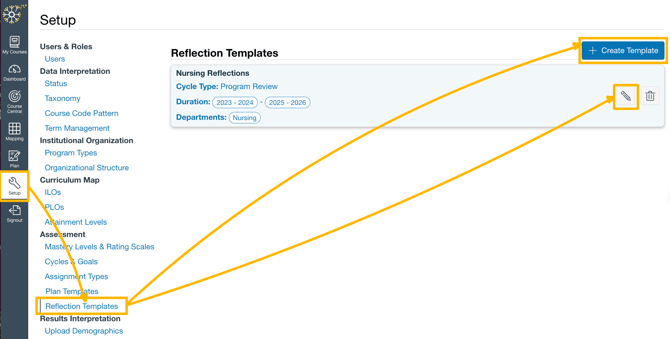
Navigate to Setup.
-
Under the Assessment heading, select Reflection Templates.
- To create a new template select "Create Template"
- To edit an exisiting template select the "Pencil" icon located to the right of the template to make edits.
Create a Reflection Template
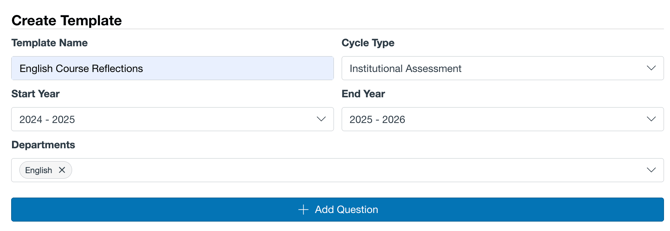
When creating a Reflection Template, you must configure the following required fields:
-
Template Name – A descriptive name for internal identification.
-
Cycle Type - Assign the type of Cycle this template will be associated with.
-
Duration – Select a start year and end year.
-
Departments – Assign one or more departments to the template.
To Add questions to the template:
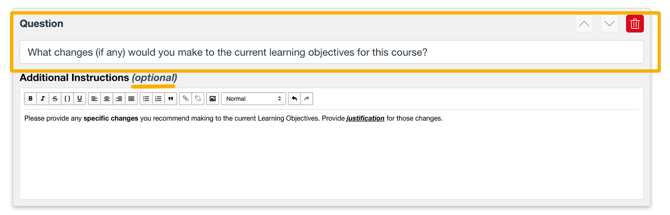
Once the required fields are complete, you can add one or more question(s) to the template.
Each question includes the following fields:
-
Question– Used for the reflection question or prompt.
-
Additional Instructions (Optional) – Used for additional instructions, context, or faculty guidance. (This field uses a Rich Text Format that allows for text formatting and layout.)
You may add multiple sections to structure the reflection into multiple prompts.
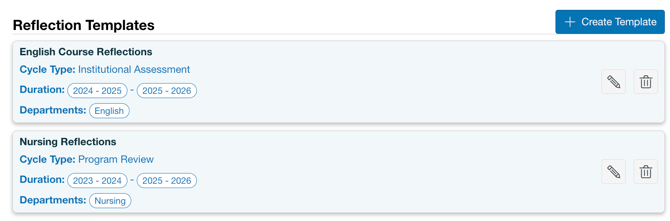
Once you have completed the previous steps, click on the "Create Template" button at the bottom of the page to create the template. On the Reflection Template page, you will see a list of all of the templates you have created:
Assigning Reflection Templates in Course Review Cycles
In addition to department-level assignment, ACs and PCs can assign Reflection Templates at the course level when configuring Course Review Cycles.
Template Selection Order
When creating a Course Review Cycle, you will see the options below for the templates.
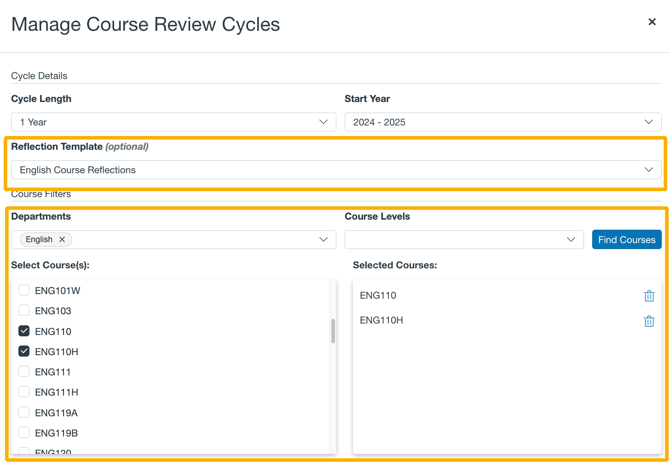
When a reflection is created, the system determines which template to use in the following order:
-
Course-level assignment
If the section’s parent course has a review cycle with an associated Reflection Template, that template is used. -
Department-level assignment
If no course-level template exists, the system checks for a department-level Reflection Template. -
No template
If neither applies, the reflection will be untemplated.
Important Note:
-
A department can have only one active Reflection Template at a time.
-
If you attempt to assign a template to a department that overlaps the terms of an existing template, the system will prevent creation and notify you of the conflict.
Editing a Reflection Template
NOTE: Only the original author of the template has permission to edit or delete a template.
IMPORTANT NOTE: Once a template has been used by faculty and data has been collected, DO NOT EDIT or DELETE THE TEMPLATE. This is to prevent any data continuity issues that will cause problems within the system. Editing should only be done prior to its use.
To edit an existing Reflection Template, select the "pencil" icon to the right of the specific template you would like to edit:
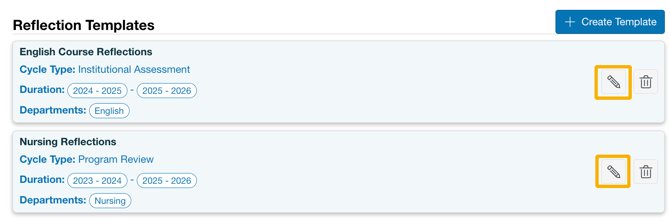
To delete a Reflection Template, click on the trash can icon.
Once you are in the Edit Template screen, you will see the data previously added to the reflection template. You can edit any of the fields or questions as described in the "Create Template" section. 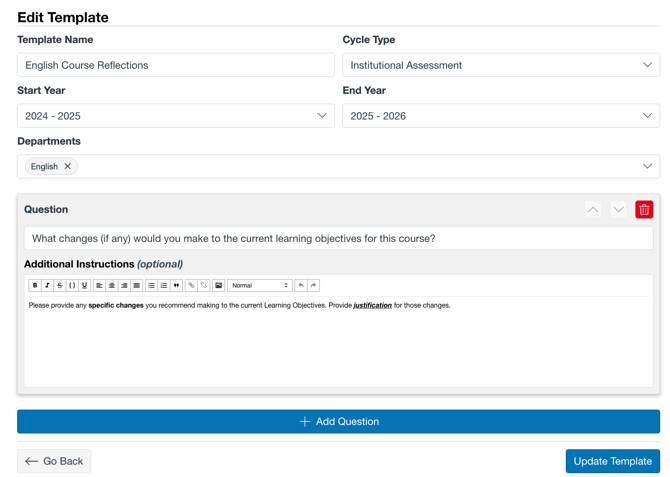
To save your changes, click on Update Template.