![Insights_horiz-1.png]](https://support.elumenconnect.com/hs-fs/hubfs/Insights_horiz-1.png?height=40&name=Insights_horiz-1.png)
Create and Publish a Course Review
During a Course Review, users assigned to Coordinate Courses can compile, revise, and summarize faculty reflections and actions submitted over the review cycle period. This process helps consolidate faculty input into a clear, actionable course-level review.
To start your Course Review, ensure the following:
- You have created a Course Review Cycle that includes the course (See Course Review Cycle)
-
Course results are finalized (See Course Finalization)
Access Reflections and Actions
To work with reflections and actions during a Course Review: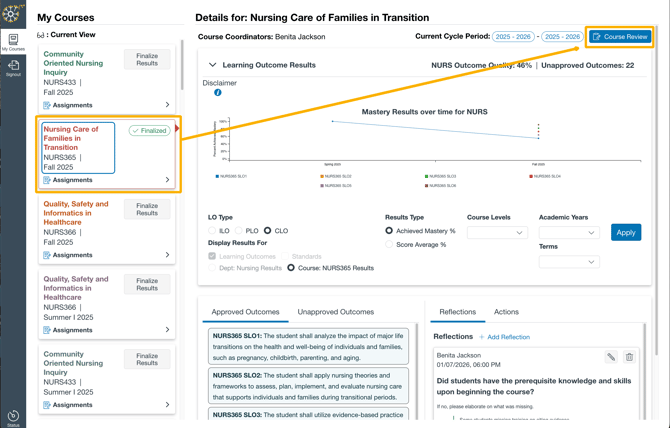
-
Navigate to the Faculty Dashboard.
-
Select the Course Review button in the top-right corner.
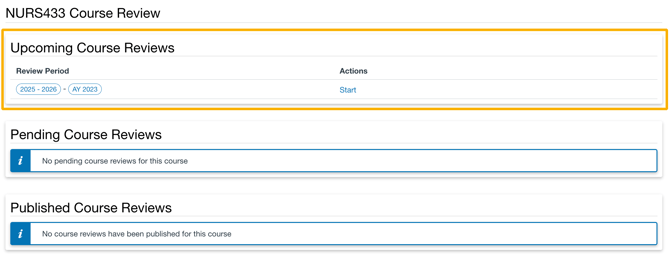
- To start a Course Review, find the review cycle in the Upcoming Course Reviews list and click Start:
-
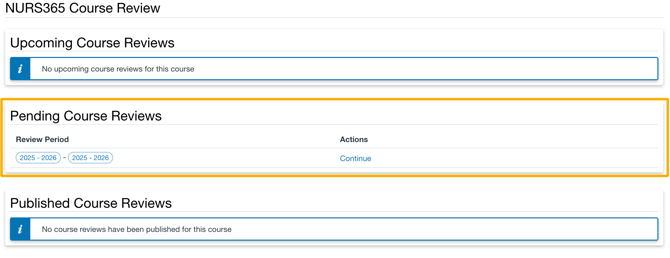
To edit an exisiting Course Reviiew click Continue for the Pending Course Review.
Review Course Results:
Once you access the Course Review, you will be able to choose what data and how your data is displayed. Here are the options you will have:
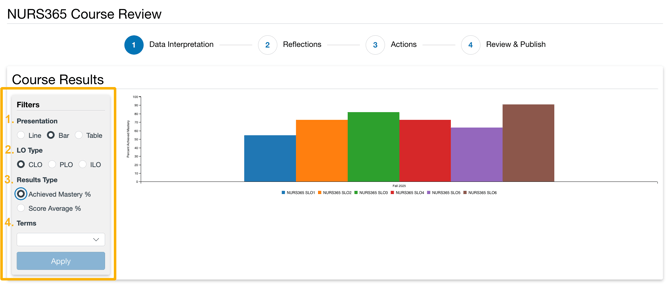
- Presentation - You can choose to display the data as a Line Graph, Bar Graph, or table.
- LO Type - Choose which Learning Outcome type you would like to display for the course results.
- Results Type - Either Acheived Mastery % or Score Average %
- Terms - Select from the available terms. Only data from the selected terms will be displayed.
View Reflections and Actions
The Reflections section displays a complete list of Faculty reflections: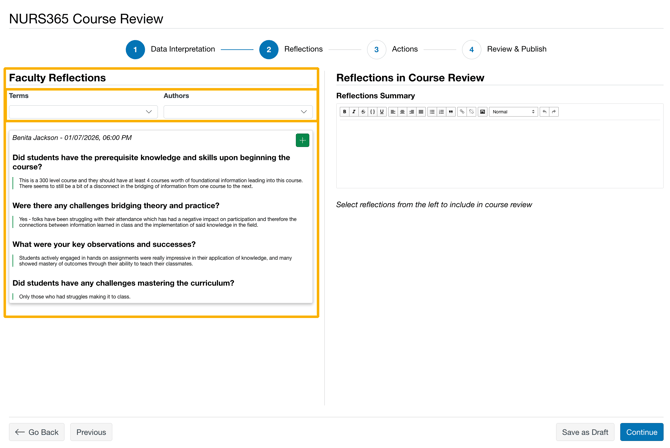
To make long lists easier to manage, use the available filters:
-
Term filter – Narrow results by academic term
-
Author filter – View reflections from specific faculty members
The Actions section displays a complete list of Faculty actions: 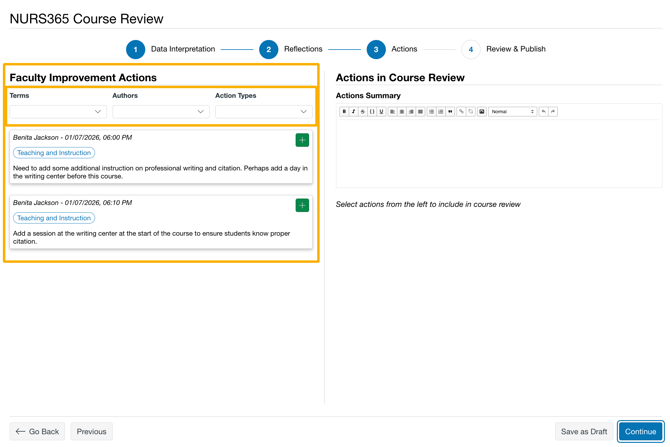
To make long lists easier to manage, use the available filters:
-
Term filter – Narrow results by academic term
-
Author filter – View actions from specific faculty members
- Action Type filter – View action by sepcific action type
Only items submitted for sections within the active review period are shown.
Compile and Revise Items
Selecting Reflections:

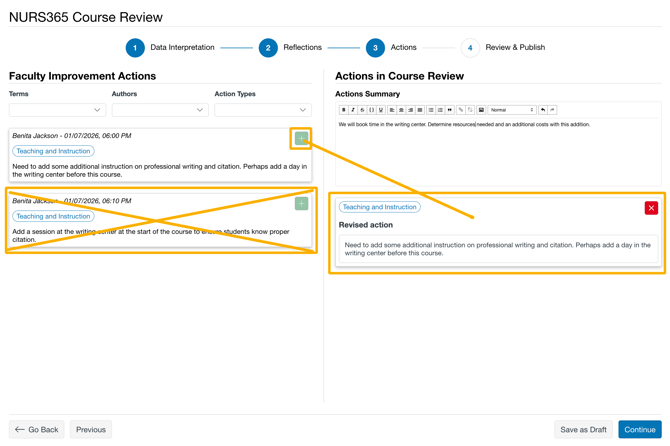
Selecting Actions:
-
Select the green plus (+) icon to add a reflection or action to the review workspace on the right-hand side.
-
Once added, items can be revised or edited as part of the course-level summary.
Note: Only one action per action type can be selected per Course Review.
Add Course-Level Summaries
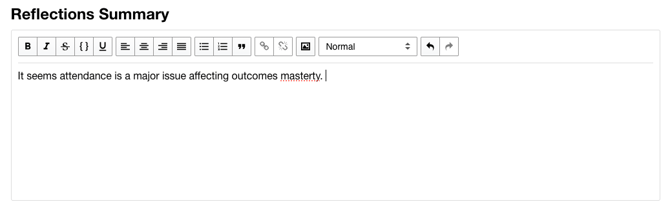
At the top of the right-hand panel on both the Reflections and Actions pages, coordinators can use the Rich Content Editor (RCE) to:
-
Summarize key themes from faculty reflections
-
Provide context or rationale for selected actions
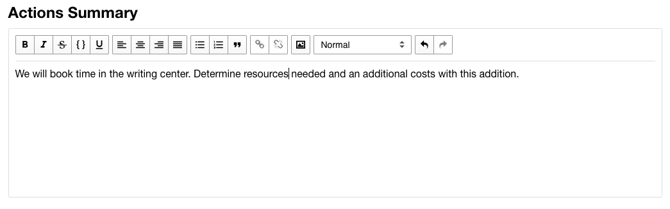
These summaries appear as part of the Course Review.
Draft vs. Published Reviews
-
While a Course Review is saved as a draft, reflections, actions, and summaries can be revisited and modified.
-
Once a Course Review is published, all content becomes final and read-only.
Key Notes
-
Only users with the assigned to Coordinate Courses can compile and revise reflections and actions.
-
Filters help narrow large lists for easier review.
-
Published Course Reviews cannot be edited.