![Insights_horiz-1.png]](https://support.elumenconnect.com/hs-fs/hubfs/Insights_horiz-1.png?height=40&name=Insights_horiz-1.png)
Harvest Scores at End of Term (Finalization)
Harvesting scores at the end of term allows institutions to balance Canvas’s flexible, real-time grading behavior with the need for stable, reliable assessment data in eLumen Insights. By finalizing results at a specific point in time, institutions can ensure consistent longitudinal reporting without requiring every Canvas configuration or workflow to behave identically across departments.
Overview
By default, Insights ingests Canvas assessment data (Assignments, Quizzes, and New Quizzes) in near real time. Upon ingestion, Insights:
-
Immediately aggregates results into longitudinal outcome mastery
-
Automatically calculates indirect outcomes (ILOs and PLOs) using the Curriculum Map
While useful for immediacy, this approach can result in:
-
Frequently changing scores
-
Discrepancies between Canvas, the Learning Mastery Gradebook, and Insights
-
High variability when multiple assessments map to the same outcome
To address this, Insights supports finalizing assessment results for a Section (Canvas course). Finalization captures outcomes at a discrete moment in time and treats them as authoritative for reporting.
Finalizing Assessment Results
Finalization allows a faculty member or course coordinator to select how results should be harvested for a section. Once finalized, Insights will:
-
Store the selected results for viewing in Longitudinal Results
-
Calculate indirect outcome results using the Curriculum Map
Finalized results remain stable and are not affected by ongoing grading activity in Canvas.
To Finalize Results
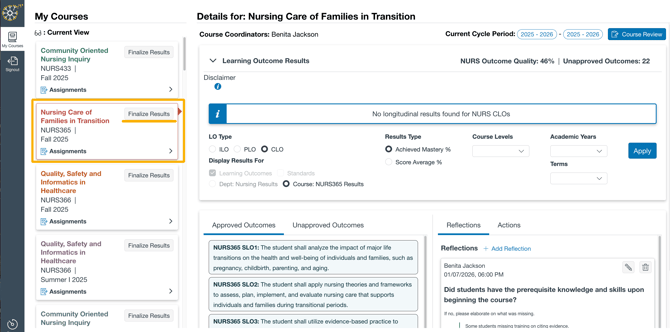
To access the Finalize Results screen:
-
Go to "My Courses"
-
Navigate to the Course Tile on the left of the dashboard.
- Click "Finalize Results"
This will bring you to a window with the three options for finalization on the left of the screen:
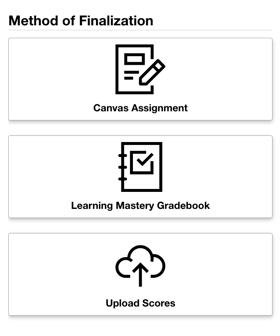
Single Course Assessment - Finalizing a single Canvas Assessment

This option allows users to finalize results from a specific Canvas assignment associated with a section.
When to Use
-
Outcomes are intentionally assessed in a single assignment
-
The assignment represents the definitive measure of student performance for those outcomes
How it Works
-
Insights captures outcome results from the selected assignment at the moment of finalization
-
Results are treated as final for reporting and indirect outcome calculations
To Finalize a Single Assignment's Scores
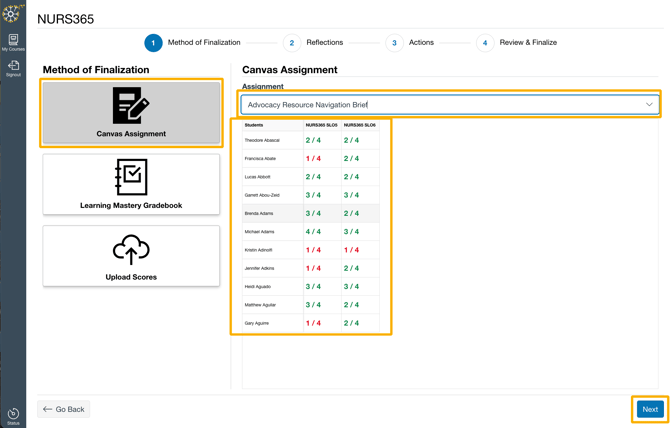
- Select Canvas Assignment
- Select the Assignment from the "Assignment" drop-down list:
-
Review your scores and click the next button.
Learning Mastery Gradebook
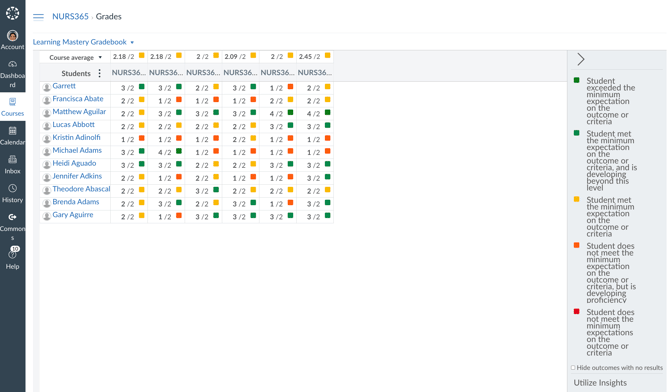
This option uses outcome results as calculated by Canvas’s Learning Mastery Gradebook (LMG).
When to Use
-
When your assessments are spread across several assessments, it might be more convenient to pull scores into a single report using the LMG.
How It Works
-
Canvas applies the calculation method defined on the institution’s Learning Outcome
-
Multiple assessment scores for an outcome are combined into a single result per student
Rounding Considerations
Because LMG calculations may produce fractional values, Insights applies rounding to determine mastery on an integral rating scale.
Recommended Rounding Methods
-
Round Half Up
-
Recommended for Course Performance
-
Gives the benefit of the doubt when mastery has been demonstrated at least once
-
-
Round Down
-
Recommended for Student Benchmarks
-
Applies a more rigorous mastery standard
-
How to Finalize with Learning Mastery Gradbook:
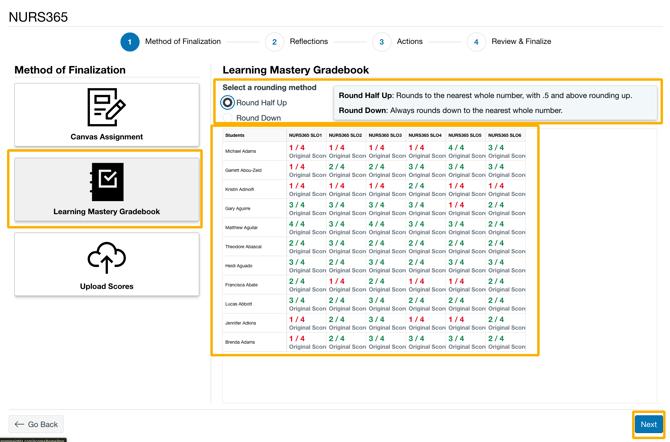
-
Under Method of Finalization, select Learning Mastery Gradbook.
- You can then determine the rounding methods (based on the recommended rounding methods).
- Review your scores and click the next button.
Important Notes
-
Rounding is required because mastery can only be achieved (or not) at whole values on the rating scale.
-
If the calculation method for an outcome is changed after finalization, it will not affect the finalized scores stored in Insights.
Upload Scores
This option allows users to upload finalized outcome scores directly, bypassing Canvas calculations.
When to Use
-
Outcomes are assessed outside of Canvas
-
Institutions want full control over finalized outcome results
-
Canvas grading workflows vary significantly across departments
- When you are using a system other than Canvs as your gradebook (i.e., your institution's S.I.S.)
Behavior
-
Uploaded results are treated as finalized at the time of submission
-
Indirect outcomes are calculated immediately after upload
See How do I use the Faculty Score Upload feature in Course Central? article for detailed instructions
Finalizing Reflections and Actions and Submitting Finalized Data
Once you have the data input, you can review and modify the course reflections and course actions.
- First, you can create, edit, or remove reflections from the course data.
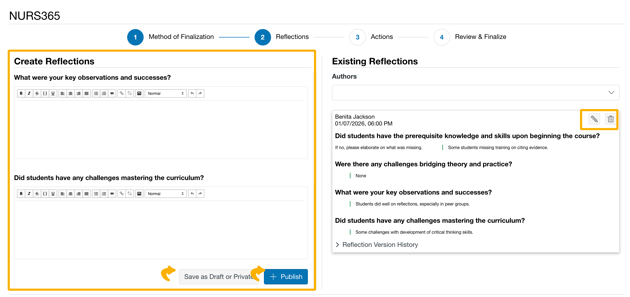
- Once you have made any changes to the course reflections, click "Next."
- Next, you can create, edit, or remove Actions from the course data.
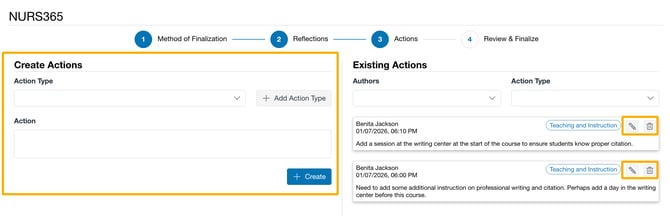
- Once you have made any changes to the course Actions, click "Next."
- Once you have completed the Finalization, you have one final chance to review the Scores, Reflections, and actions before submitting them for finalization:
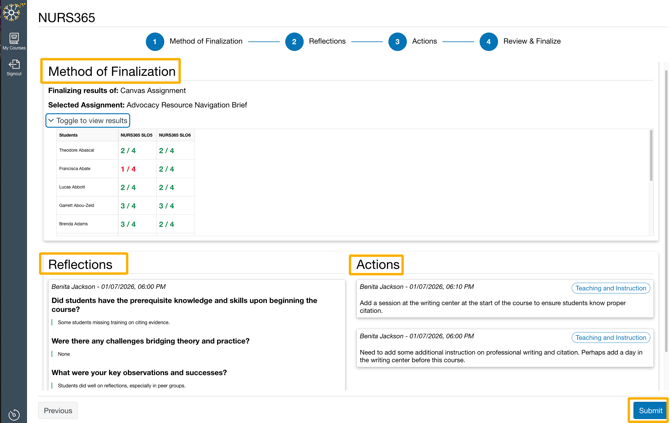
- Once you have reviewed the data, you can click on the "Submit" button to finalize those scores. You will see a confirmation message asking if you want to proceed. Click yes.
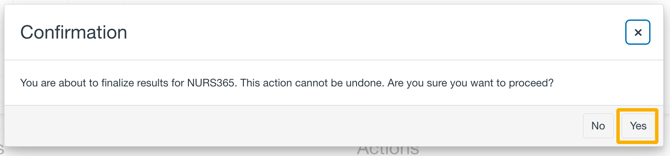
- Your scores are now finalized and will appear in the dashboard.
Key Considerations and Limitations
-
Finalization captures results at a single point in time
-
Finalized scores are used for all longitudinal and indirect outcome reporting
-
Changes to Canvas grading, calculation methods, or outcomes after finalization do not affect stored results
-
Institutions can choose the finalization method that best aligns with their assessment strategy
Summary
Harvesting scores at the end of term enables institutions to:
-
Reduce variability in assessment data
-
Align Insights reporting with intentional assessment practices
-
Maintain reliable, defensible longitudinal outcome results
By supporting multiple finalization methods—Course Assessment, Learning Mastery Gradebook, and Upload Scores—Insights provides flexibility without sacrificing consistency.