![Insights_horiz-1.png]](https://support.elumenconnect.com/hs-fs/hubfs/Insights_horiz-1.png?height=40&name=Insights_horiz-1.png)
Overview
Automated reminder notifications help keep qualitative measure reviewers on track by sending timely reminders about approaching and overdue deadlines. These plan-level notification settings apply to all qualitative measures within your plan that have a "due at" Insights term specified. By configuring just a few settings, you can establish an automated system that reduces compliance issues and keeps your assessment process moving forward.
Prerequisites
✓ You have Assessment Coordinator (AC) or Program Coordinator (PC) access to your assessment plan
✓ At least one qualitative measure has been created with a "due at" Insights term specified
✓ You understand your assessment term structure
✓ Your Insights term end dates are configured in Setup
Important: Notifications are only sent for qualitative measures that have a "due at" Insights term assigned. Measures without a specified due term will not trigger reminders.
Accessing Notification Settings
Follow these steps to reach the Notifications Settings section:
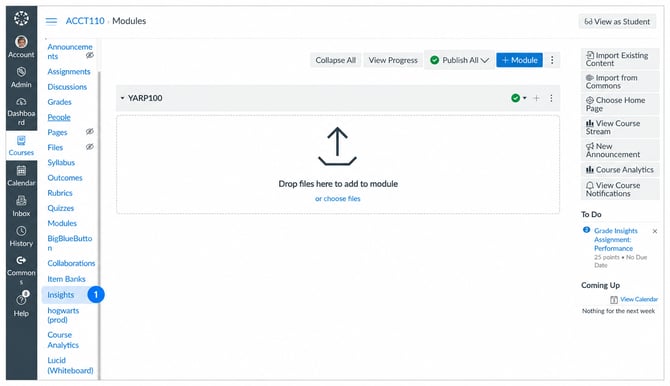
Step 1: Navigate to Your Course
- Click Courses from your main navigation
- Select a course from your course list
- Click the Insights button to access the Insights module
Step 2: Access the Assessment Plan Settings
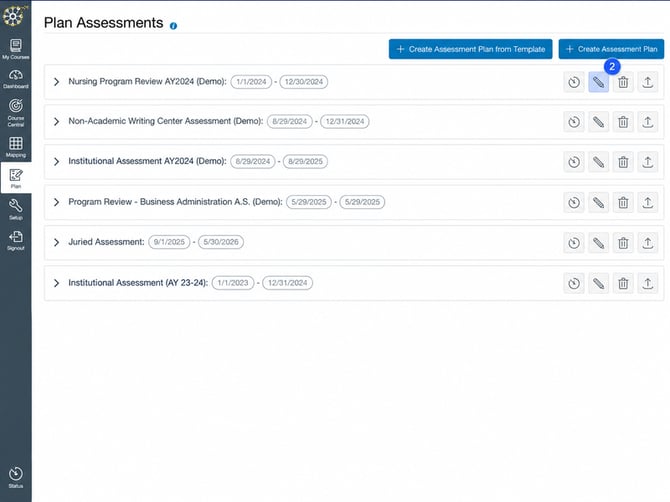
- Locate the assessment plan for which you wish to set notifications
- Click the pencil (edit) icon on the right side of the assessment plan row
- The Manage Plan panel will appear on the left side of the screen
Step 3: Locate Notifications Settings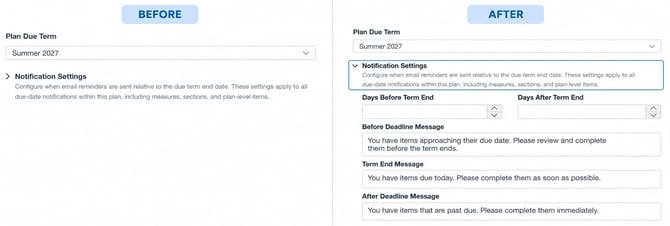
- Scroll down in the Manage Plan panel to find the Notification Settings section
- Click the arrow button to expand this section
- The notification configuration options will now be visible
Configuring Your Notification Settings
Once you've expanded the Notification Settings section, you'll see the full configuration interface. The section includes the description: "Configure when email reminders are sent to qualitative measure assignees relative to the due term end date. Messages are pre-filled with defaults and can be customized."
Follow these three steps to set up your notification system:
Step 1: Review the Notification Settings Description
At the top of the Notification Settings section, you'll see an informational description that explains the purpose of this feature:
"Configure when email reminders are sent to qualitative measure assignees relative to the due term end date. Messages are pre-filled with defaults and can be customized."
This confirms that:
- Notifications are sent relative to the due term end date specified on each qualitative measure
- Message templates come with defaults but can be customized
- Settings apply to all qualitative measures in this plan with a due term specified
💡 Tip: Notifications only apply to qualitative measures that have a "due at" Insights term assigned in their measure details.
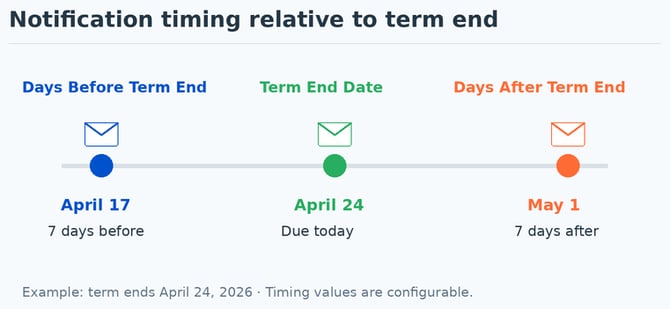
Step 2: Set Reminder Timing
Enter the number of days for each reminder in the two input fields:
| Setting | Purpose | Example | Notes |
|---|---|---|---|
| Days Before Term End | Number of days before the term end date to send the first reminder | 7 | Allows reviewers time to complete work |
| Days After Term End | Number of days after the term end date to send overdue reminders | 7 | Continues accountability for late submissions |
Step 3: Customize Your Messages
Below the timing settings, you'll find three editable email message templates. Customize each according to your communication style or use the default messages provided.
The three message types are: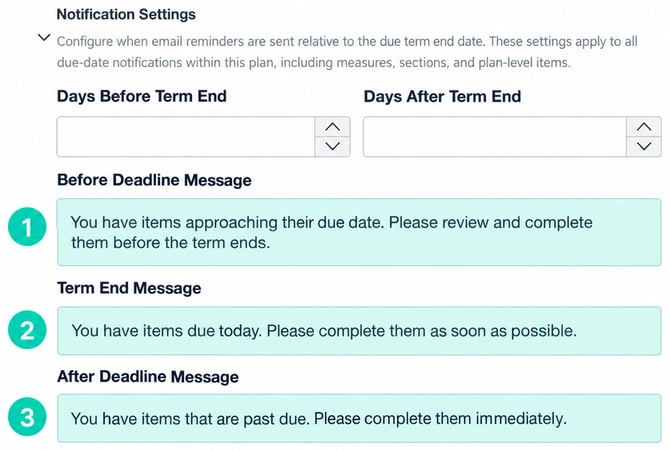
- Before Deadline Message — Sent {Days Before Term End} before the term end date to remind reviewers of approaching deadlines
- Day of Reminder Message — Sent on the term end date itself as a final deadline reminder
- After Deadline Message — Sent {Days After Term End} after the term end date to notify reviewers that work is now overdue
Example Configuration
Here's a recommended setup for optimal reviewer engagement: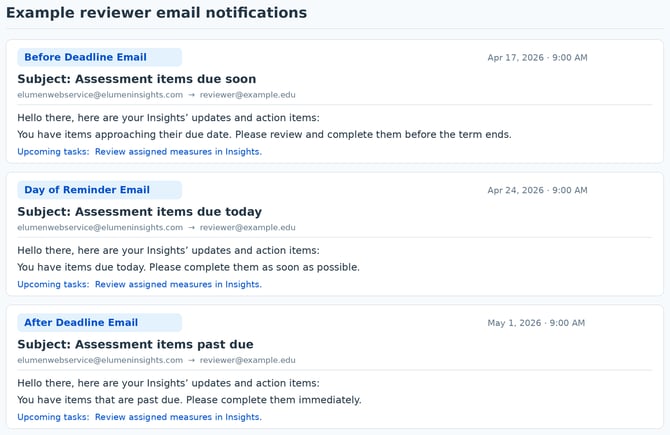
| Setting | Recommended Value |
|---|---|
| Days Before Term End | 7 |
| Days After Term End | 7 |
| Before Deadline Message | "You have items approaching their due date. Please review and complete them before the term ends on {DATE}." |
| Day of Reminder Message | "The following qualitative measures are due today. Please complete them as soon as possible." |
| After Deadline Message | "You have items that are past due. Please complete them immediately. Contact your administrator if you need additional support." |
How Automated Notifications Work
Once your plan is configured, the notification system operates automatically based on your settings. Here's how it works:
Automatic Triggering
When qualitative measures are assigned to reviewers with a due at Insights term specified, reminder notifications are automatically scheduled: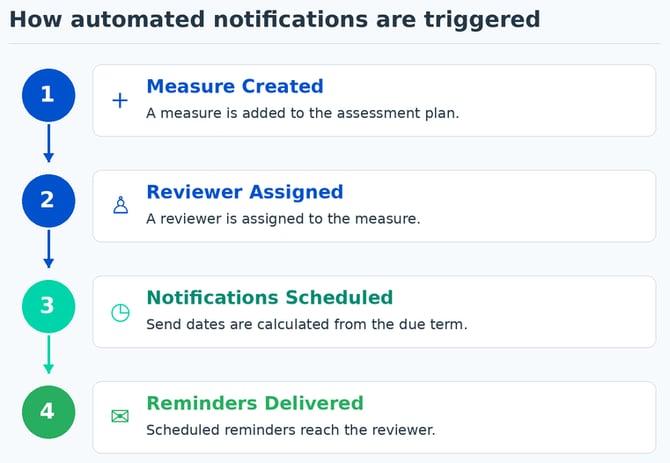
- Measure Created — A qualitative measure is created in the system with a specific "due at" Insights term
- Reviewer Assigned — The measure is assigned to one or more reviewers
- Notifications Scheduled — Based on your plan settings, notification dates are automatically calculated
- Reminders Delivered — Notifications are sent at the scheduled times (2:00 AM CST)
Consolidated Delivery
If a reviewer is assigned to multiple qualitative measures due in the same term, all notifications for that term will be sent in a single consolidated email rather than separate messages. This reduces email clutter and improves engagement.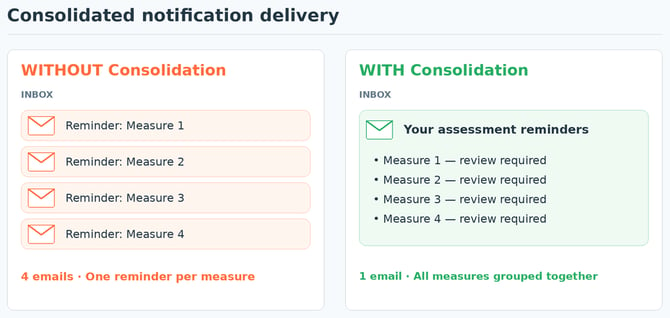
Dynamic Updates
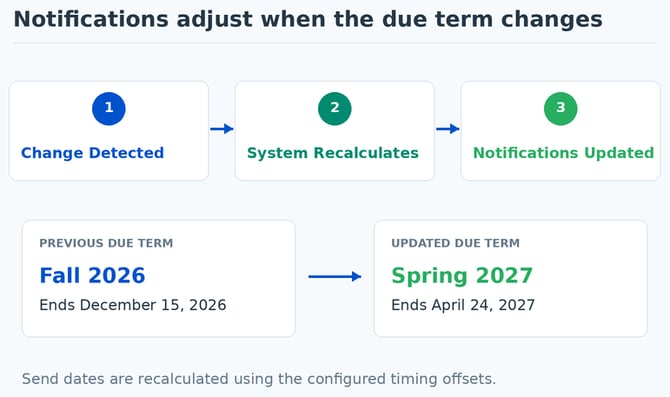
Notification dates automatically recalculate if:
- The end date of an Insights term changes in Setup
- The due term of a qualitative measure is changed (e.g., moved from Fall 2026 to Spring 2026)
Notification Removal and Status
When a measure's due term is removed, pending notifications are canceled and removed from the system. Completed and errored notifications are retained in the system history but will not be resent.
Important Notification Guidelines
⚠️ Timing Considerations
- Scheduled Delivery — All notifications are scheduled to send at 2:00 AM CST
- Past-Due Terms — If the term end date is today or in the past, the system behavior depends on how far in the past:
- If term ends TODAY: Only the overdue ("you're late") reminder will send. "In advance" and "day of" reminders will NOT send.
- If term ended YESTERDAY or earlier: Only future-scheduled reminders (overdue reminders) will send if not already sent.
- No Resending — Reminders that have already been successfully sent will NOT be resent if the measure due term is later changed.
Example Scenario
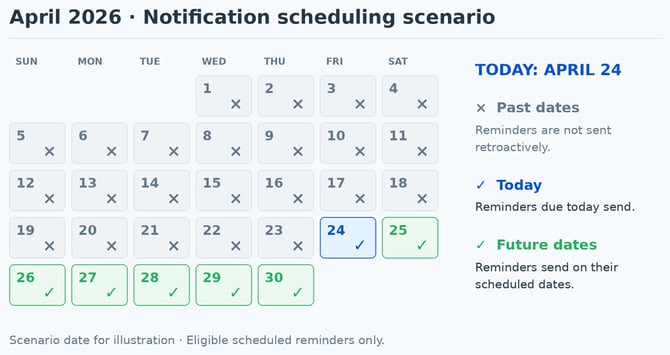
If you create a qualitative measure due at the end of Spring 2026 (term end date: April 24, 2026), and today is April 24, 2026:
✅ Overdue reminder WILL send — Late work reminders still trigger
❌ "In advance" reminder will NOT send — Deadline already passed
❌ "Day of" reminder will NOT send — Deadline already passed
If today were April 25, 2026 (one day after term end):
✅ Overdue reminder WILL send — Continues sending until the configured "Days After Term End" period expires
❌ "In advance" reminder will NOT send — Deadline already passed
❌ "Day of" reminder will NOT send — Deadline already passed
Important Notes About Plan Updates
Generic Plan Reminder Emails: When an overall assessment plan is updated, a generic reminder email is sent to all reviewers on the plan notifying them that the plan has been updated. This generic email is separate and distinct from the automated notification reminders configured in this Notification Settings section. Both types of emails may be sent to your reviewers.
Best Practices
Follow these best practices to maximize the effectiveness of your notification system:
✅ Configure notifications for all assessment plans — Ensure reviewers receive reminders for every plan to maintain accountability and engagement.
✅ Set reminders well in advance — Configure "Days Before Term End" to at least 5–7 days to give reviewers sufficient time to complete reviews without rushing.
✅ Use clear, actionable message text — Customize your messages to be specific about what action reviewers need to take and why it matters. Include the term name and date if possible.
✅ Include overdue reminders — Set "Days After Term End" to continue reminding reviewers of past-due work (suggest 3–7 days).
✅ Verify your term end dates — Double-check that your Insights term end dates are accurate in Setup, as the notification system relies entirely on these dates for scheduling. Verify that each qualitative measure has the correct "due at" term assigned.
✅ Consolidate related measures — When possible, assign related qualitative measures to the same reviewers and term to take advantage of consolidated email delivery.
✅ Test your notification messages — Before finalizing your plan, review the default or customized messages to ensure they are professional, clear, and motivating.
✅ Monitor notification activity — Periodically check whether reviewers are responding to notifications and adjust timing or messaging if needed to improve engagement.
✅ Avoid overlapping terms — If possible, stagger your assessment terms to prevent notification fatigue from multiple reminders arriving simultaneously.
✅ Document your notification schedule — Share your plan's notification settings with your assessment team so everyone understands when reminders will be sent.
✅ Ensure "due at" terms are assigned — Verify that qualitative measures have a "due at" Insights term specified. Measures without a due term will not trigger any reminders, regardless of plan settings.
Troubleshooting
No notifications are being sent
- Verify that your notification settings are configured with valid "Days Before Term End" and "Days After Term End" values
- Check that each qualitative measure has a "due at" Insights term specified (this is required for notifications to send)
- Confirm that your term end dates are set correctly in Setup
- Ensure the term end date is not already in the past (if so, only overdue reminders will send)
Reviewers report receiving too many notifications
- Review your "Days Before Term End" and "Days After Term End" settings to ensure they are reasonable
- Check if the reviewer is assigned to multiple qualitative measures with the same due term (these should consolidate into one email, but confirm the consolidation is working)
- Verify that you're not accidentally receiving both the generic plan update email AND the notification reminders
Notification messages contain incorrect information
- Edit the message templates in the Notification Settings section to correct any text
- Changes apply to future notifications only; past notifications cannot be updated
- Test your messages by reviewing them in the configuration interface before finalizing
I changed a qualitative measure's due term, but the old reminder was already sent
This is expected behavior. Once a reminder is successfully sent, it is marked as complete and will not be resent. New reminders will be created based on the updated due term, but the original reminder cannot be recalled.
Example: If a measure was due Spring 2026 and an "in advance" reminder was already sent, then you move the measure to Fall 2026, a new "in advance" reminder will NOT be created for Fall 2026. However, reminders for "day of" and overdue periods will be created for the new Fall 2026 term end date.
I need to modify notifications for existing measures
- Edit the timing and message settings in your plan's Notification Settings section
- New notification send dates will be calculated based on the updated settings for measures with future due dates
- Previously sent notifications will not be resent
- The changes will apply to all future notifications for measures with the updated term dates