![Insights_horiz-1.png]](https://support.elumenconnect.com/hs-fs/hubfs/Insights_horiz-1.png?height=40&name=Insights_horiz-1.png)
Overview
Structured questions transform complex qualitative measures into multiple, focused questions within a single measure. This gives authors a rich text area for each question, allowing them to answer your measure iteratively and systematically. You gain targeted guidance capabilities while managing complex, multi-part assessments more effectively.
In this guide, you'll learn how to:
- Understand when and why to use structured questions
- Create structured questions in assessment plans
- Build reusable templates with structured questions
- View and manage author responses
- Preview and publish results
Quick Reference
| Prerequisite | Details |
|---|---|
| Access | Admin or Coordinator access to Assessment Plans |
| Planning | Learning outcomes defined; at least one assessment cycle created |
| Time to Plan | 5–10 minutes to structure your questions |
| Complexity Level | Intermediate — requires strategic thinking about question design |
What Are Structured Questions?
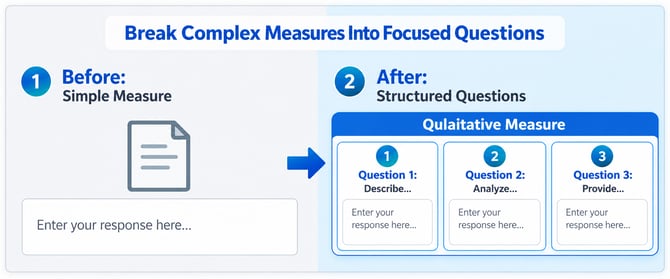
Structured questions are individual, distinct questions within a single qualitative measure. Each question has its own rich text area for responses, allowing authors to answer systematically rather than in a single large text field.
Each structured question includes:
- A specific question or prompt
- Helper Text (optional) — Rich text formatting for guidance
- Independent evidence requirements (yes/no per question)
- Flexibility in response format
What Structured Questions Enable
- Targeted guidance — Each question has specific instructions tailored to that response
- Organized complexity — Break multi-part measures into logical sections
- Flexible evidence — Different evidence types and quantities per question
- Iterative responses — Authors answer each question in its own editor before submitting
Example: A measure on "Student Learning Outcomes" could include:
- Question 1: Describe student performance in critical thinking
- Question 2: Provide evidence of communication skills
- Question 3: Analyze barriers to student success
When to Use Structured Questions
Use structured questions when your measure addresses:
- Multiple learning outcomes — Different dimensions of student learning requiring separate analysis
- Varied assessment methods — Combining quantitative data, artifacts, and narrative responses
- Complex institutional questions — Multi-part strategic goals requiring nuanced responses
- Role-specific requirements — Different authors contributing different sections
- Detailed program analysis — Comprehensive reviews requiring depth across multiple areas
Planning Your Structured Measure
Pre-Creation Checklist
Before you build structured questions, confirm you have:
- ☐ Defined your primary learning outcome or institutional goal
- ☐ Identified 3–5 key questions addressing this outcome
- ☐ Determined which questions require supporting evidence
- ☐ Clarified response expectations (length, format, detail level)
- ☐ Identified who will complete each question
- ☐ Set realistic due dates for multi-part responses
- ☐ Planned your evidence management strategy
- ☐ Decided if this measure should be reused (template) or used once (plan-specific)
Process Overview
 The process for creating and using structured qualitative measures follows these stages:
 Path A: Direct Creation
- Navigate to assessment plan
- Add qualitative measure
- Create structured questions
- Assign and finalize
Path B: Template Creation (Reusable)
- Create plan template
- Add qualitative measure with structured questions
- Save template
- Reuse across cycles
Path C: Template Application
- Create plan from template
- Structured questions appear (locked from template)
- Customize plan details
- Assign and finalize
Path A: Create Structured Questions in Assessment Plan
Use this path when you're building a measure for a specific assessment cycle and don't need to reuse it.
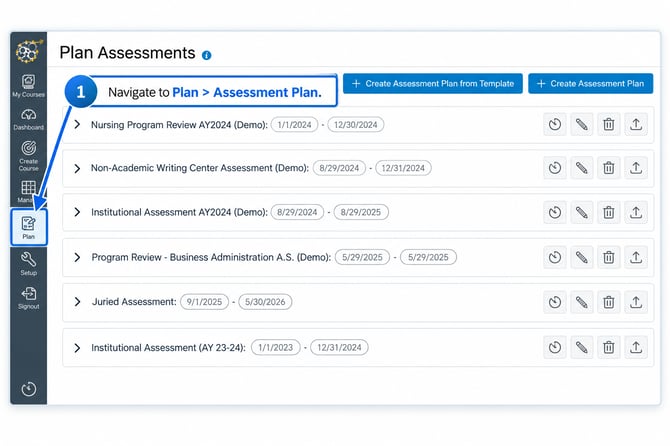
Step 1: Navigate to Your Assessment Plan
- Click Plan in the main navigation
- Select Assessment Plan from the dropdown
- Your current assessment cycles will be listed
Step 2: Edit or Create Your Assessment Plan
To edit an existing plan:
- Locate the assessment cycle you want to edit
- Click the pencil (edit) icon on the right side of the row
- The Manage Plan page will open
To create a new plan:
- Click Create Assessment Plan
- Select your cycle
- The Manage Plan page will open
Step 3: Add a New Measure
- On the Manage Plan page, click + Add Measure
- A dropdown menu will appear
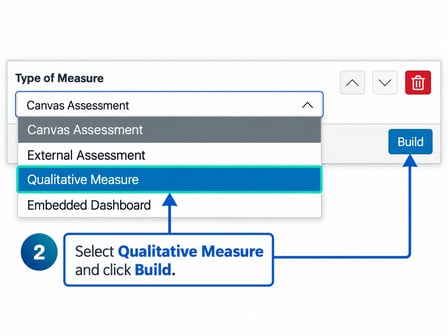
- Select Qualitative Measure from the list
Step 4: Build Your Qualitative Measure
- Select Qualitative Measure (if not already selected)
- Click the Build button
- The "Add Qualitative Measure" modal will open
Step 5: Complete the Measure Form
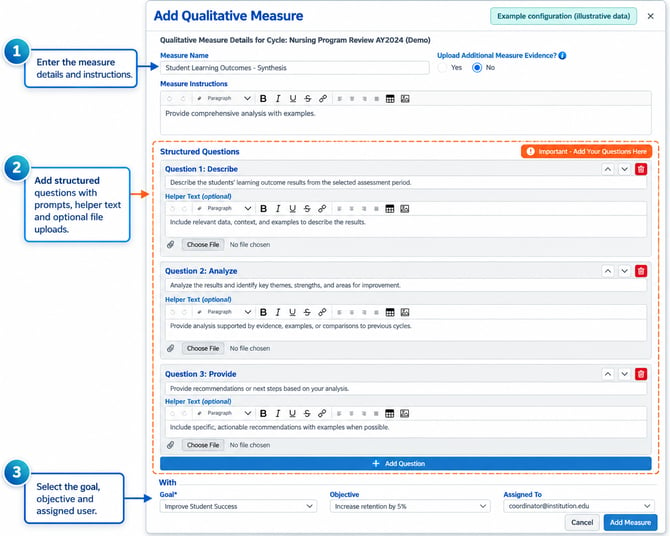
In the modal, fill out the following fields:
| Field | Description | Example | Required? |
|---|---|---|---|
| Measure Name | Descriptive name for the measure | Student Learning Outcomes - Synthesis | Yes |
| Upload Measure Evidence | Toggle to require supporting evidence uploads | Yes/No | No |
| Measure Instructions | General guidance for completing the entire measure | "Provide comprehensive analysis with examples" | No |
| Structured Questions | Individual questions breaking down the measure | See below | No |
| Goal (optional) | Align to institutional goal | "Improve Student Success" | No |
| Objective (optional) | Align to specific objective | "Increase retention by 5%" | No |
| Assigned To | Email of responsible person | coordinator@institution.edu | Yes |
Step 6: Add Structured Questions
This is where you define the multiple questions within your measure. Each question will have its own rich text area for authors to answer.
For each question:
- Click + Add Question
- Enter the question text (e.g., "Describe how students demonstrated critical thinking in capstone projects")
- Provide Helper Text (optional but recommended) — Rich text formatting available for guidance
- Toggle Enable file upload for this question if evidence is required for this particular question
- Repeat to add additional questions (3–5 total recommended)
Key Points:
- Each question gets its own answer box when authors respond
- Helper text supports rich formatting (bold, links, lists, etc.)
- Evidence requirements are independent per question
- Authors can answer each question fully before moving to the next
Example: Well-Structured Questions
Question 1: Describe how this year's graduating cohort demonstrated critical thinking in their capstone projects.
Helper Text: Reference specific professional standards (AACN, NASW, CCNE, state regulations, etc.). Select 2-3 representative projects. Analyze how well each demonstrates critical thinking using the [Rubric Link].
Enable file upload: Yes — "Upload up to 3 student artifacts"
Question 2: What barriers did students face in developing these skills?
Helper Text: Provide a brief narrative (200-300 words) based on your teaching experience and student feedback. Consider systemic, curricular, and individual factors.
Enable file upload: No
Question 3: Based on the evidence above, what changes would you recommend to strengthen critical thinking development?
Helper Text: Reference specific evidence from Questions 1 and 2. Use the [Improvement Plan Template]. Address timeline for implementation.
Enable file upload: Yes — "Upload completed improvement plan template"
Step 7: Finalize and Save
- Review all fields and questions for accuracy
- Click Add Measure
- The measure will appear in your Manage Plan list
- Click Update Plan to save your assessment plan
Path B: Create Structured Questions in Plan Templates
Use this path when you want to create a reusable template containing structured questions. Templates can be applied to multiple assessment cycles, ensuring consistency.
Why Use Templates?
- Consistency — Same questions across multiple years/programs
- Efficiency — Quick setup for recurring assessments
- Standardization — Maintain institutional standards for complex measures
- Template questions are locked — When applied to plans, template questions cannot be edited, ensuring fidelity
Step 1: Navigate to Plan Templates
- Click Setup in the main navigation
- Click Plan Templates in the Setup Navigation
- Your existing templates will be listed
Step 2: Create a New Template
- Click Create Template
- Give your template a descriptive name (e.g., "Curriculum Alignment Assessment")
- Click Add Section to begin organizing your template
Step 3: Add a Section and Measure
- Click Add Section to create a logical grouping
- Give the section a name (e.g., "Program Review")
- Click Add Measure
- Select Qualitative Measure from the "Type of Measure" dropdown
Step 4: Build and Add Structured Questions
- Click Build next to your Qualitative Measure
- The measure setup modal will open
- Complete all fields (same as Path A, Steps 5–6)
- Add your structured questions with:
- Question text
- Helper Text (optional)
- Per-question evidence requirements
Key Difference from Path A: Template questions will be locked when applied to plans, so ensure they're finalized and broadly applicable.
Step 5: Complete and Save Template
- Review all questions and settings
- Click Save Template (or Update Template if editing)
- Your template is now available for creating assessment plans
Step 6: Preview Your Template
Before deploying to stakeholders, you can preview how structured questions will appear to authors:
- On your template page, click Preview Results (or Preview Template)
- You'll see how each structured question appears with:
- Question text
- Helper text formatted as authors will see it
- Evidence upload area (if enabled)
- Rich text editor for responses
- Verify clarity and formatting
Path C: Create Assessment Plan from Template
Use this path to apply a saved template (with structured questions) to a new assessment cycle.
Step 1: Navigate to Assessment Plan Creation from Template
- Click Plan in the main navigation
- Click Create Assessment Plan from Template
- Select your cycle from the dropdown
Step 2: Select Your Template
- From the template list, select the template containing your structured questions
- The template preview will load, showing all sections and measures
- Scroll to find your qualitative measure with structured questions
Note: Structured questions from the template will appear in read-only mode. You cannot edit template questions, but you can:
- Customize plan-specific details (assigned authors, due dates, goals, objectives)
- Add additional plan-specific measures
- Modify other measure settings
Step 3: Customize Plan Details
While template questions are locked, you can customize:
- Assigned To — Enter the email of the responsible person
- Due Dates — Set cycle-specific deadlines
- Goals (optional) — Align to institutional goals for this cycle
- Objectives (optional) — Set cycle-specific objectives
- Additional Measures — Add plan-specific measures not in the template
Step 4: View Template Structured Questions
- Scroll to your qualitative measure with structured questions
- Click to expand the Structured Questions section
- You'll see all template questions in read-only format:
- Question text (cannot edit)
- Helper text (cannot edit)
- Evidence requirements (cannot modify)
Important: Template-based structured questions are locked to maintain consistency. If you need different questions for this cycle, create a new custom measure or update your template for future cycles.
Step 5: Finalize and Save
- Review all plan details
- Click Create or Save Plan to finalize
- The plan is now ready for author assignment
Viewing & Managing Assessment Plans with Structured Questions
Once your measure is created (via Path A, B, or C), coordinators and reviewers can view and manage structured questions in edit mode.
Step 1: Navigate to Assessment Plan Management
- Click Plan in the main navigation
- Click Assessment Plan
- Locate your cycle and click the Edit Plan (pencil) button
Step 2: View Structured Questions in the Measure
- On the Manage Plan page, scroll to your qualitative measure
- Click Edit Measure to open the measure details
- Scroll down to see the Structured Questions section
- Each question will show:
- Question number
- Question text
- Helper text
- Evidence upload toggle status
For measures from templates: Questions appear in read-only format (cannot be edited)
For measures created directly: Questions can be edited if no responses have been submitted yet
Step 3: Preview How Authors Will See Questions
- Click the Preview Results button at the bottom of your Manage Plan page
- The preview shows how structured questions will appear to authors:
- Each question in its own response box
- Helper text formatted
- Rich text editor for each answer
- Evidence upload area (if enabled)
- "Measure Results" section for responses
This helps you verify that questions are clear before authors begin responding.
Tip: Always preview your structured questions before assigning to authors. Clear, well-formatted helper text makes a significant difference in response quality.
Managing Author Responses
Once your measure is assigned and authors begin responding, you can monitor and manage their progress.
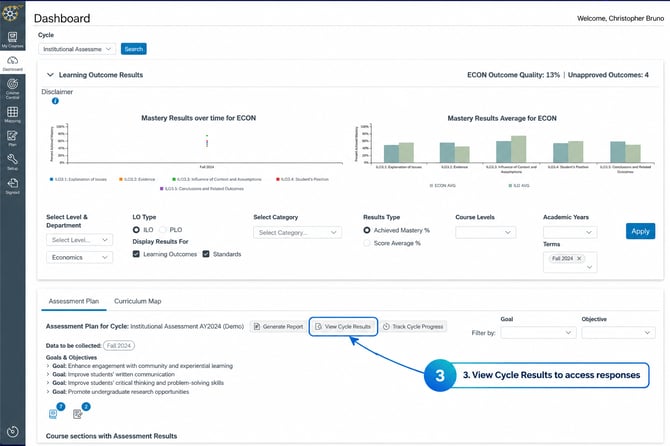
Step 1: View Cycle Results
- Click Dashboard in the main navigation
- Select the cycle associated with your assessment plan
- Click Search or View Cycle Results
Step 2: Access the Assessment Results View
- Click View Cycle Results to open results management
- Log in with the email associated with the assessment plan
- You'll see the measurement section with all measures, including your qualitative measure with structured questions
Step 3: View Structured Question Responses
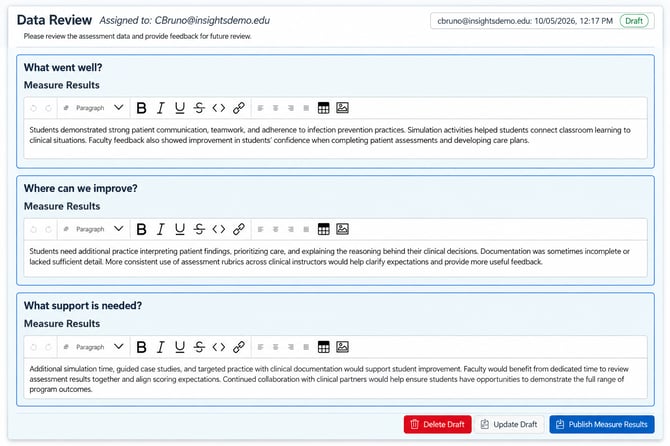
- Scroll to your qualitative measure with structured questions
- Each question will display:
- Question text
- Helper text (for reference)
- Measure Results box showing author's response
- Evidence section (if enabled for that question)
- Upload/Download links for evidence files
- If you're the assigned author: You'll see rich text editors and can edit responses
- If you're a reviewer/approver: Responses appear in read-only format
Step 4: Using Draft Saving for Iterative Responses
Authors can save their structured question responses as drafts and return later to refine:
- Author completes Question 1 and clicks Save Draft
- Author can close and return later to edit before final submission
- You (as coordinator) can review draft responses midway through the cycle
- You can provide feedback, and authors can revise individual questions
Related Feature: Draft Saving works with Response History to track all changes to structured question responses over time.
Best Practice: Review draft responses at the cycle midpoint to catch confusion or missing information early. This allows authors time to revise individual questions.
Step 5: View Response History
For measures you've completed in previous cycles:
- In the Results view, look for Response History (if available)
- You can see published responses from previous cycles
- This helps you track:
- How structured question responses have evolved
- Effectiveness of question wording
- Whether to revise questions for next cycle
Note: Response History allows you to see how authors have answered the same structured questions across multiple cycles, helping you identify trends and improvements.
Path F: Managing Evidence Per Question
Each structured question can independently require evidence uploads. Here's how to manage them:
Evidence Upload Controls
For each question in your structured measure:
- Toggle "Enable file upload for this question" to require evidence
- Authors see "Upload Measure Evidence" section under each question with enabled upload
- Different evidence types per question — Question 1 might need artifacts, Question 2 might need data
Viewing & Managing Evidence
As a coordinator:
- In Results view, navigate to your structured questions
- Under each question, look for "Upload Measure Evidence" section
- You can:
- View uploaded files — Click to preview or download
- Add evidence — Upload additional supporting documents
- Remove evidence — Delete files that aren't needed
Related Feature: Evidence Management allows coordinators to curate the evidence attached to qualitative measures, ensuring quality and completeness.
Path G: Preview and Publishing
Before finalizing results for institutional review, you can preview how structured questions will appear in reports and published results.
Step 1: Preview Results Report
- In Manage Plan (edit mode), click Preview Results button
- You'll see a preview of:
- All structured questions
- How helper text appears
- Response layout
- Evidence sections
- Overall formatting
This is useful for checking that questions are clearly worded and the layout is intuitive.
Step 2: Finalize Results
Once all responses are complete and reviewed:
- Navigate to your cycle's results
- Ensure all sections/measures have been approved
- Click Finalize Results (at the top of the page)
- Optionally add approver notes
- Click confirm
Step 3: Publish Results
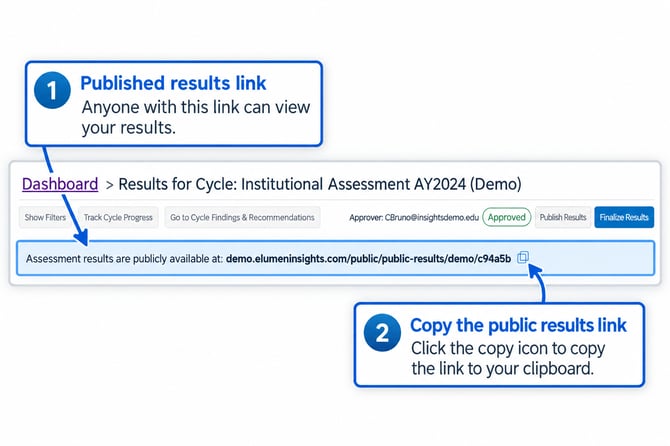 After finalizing:
- Click Publish Results
- Wait for the system to process (may take a few moments)
- A public sharing link will appear
- Copy the link to share with institutional stakeholders
Step 4: View Published Results
Once published, anyone with the link can view:
- All structured questions (question text and helper text)
- Final approved responses for each question
- Evidence that was uploaded
- Read-only format (no editing)
This is useful for:
- Sharing outcomes with accreditors
- Presenting results at faculty meetings
- Institutional transparency
- Archival documentation
Step 5: Generate Report
For archival or detailed analysis:
- In the Dashboard, select your cycle
- Click Generate Report
- Log in with your assessment email
- You'll receive a comprehensive report showing:
- All structured questions
- Final responses
- Evidence metadata
- Historical comparisons (if applicable)
This report can be downloaded and shared with program leadership.
Best Practices
Planning Your Questions
✅ Limit to 3–5 questions per measure — Keep the measure manageable. Each question should address a distinct component of your learning outcome.
✅ Align each question to a specific learning outcome — Map questions 1-to-1 with outcomes for easier analysis and improvement planning.
✅ Use consistent question format — Start questions with parallel verbs: "Describe...", "Analyze...", "Evaluate...", "Provide evidence of..."
✅ Avoid leading or biased language — Frame questions neutrally to elicit authentic responses, not predetermined conclusions.
✅ Test question clarity — Have a colleague review questions for ambiguity before assigning to authors.
Writing Clear Helper Text
✅ Provide context — Explain why each question matters and how responses will drive improvement decisions.
✅ Include specific examples — Show sample responses or reference relevant rubrics to guide authors on expected depth and detail.
✅ Specify evidence requirements clearly — State the type, format, and quantity (e.g., "Attach 3–5 student artifacts", "Provide Excel data export").
✅ Use embedded links — Reference relevant policies, rubrics, or guidance materials directly within helper text using rich text formatting.
✅ Keep language simple — Use active voice and avoid jargon that might confuse authors.
Evidence and Response Planning
✅ Require evidence strategically — Not every question needs evidence. Use evidence for questions requiring quantitative data, artifacts, or documentation.
✅ Set realistic due dates — Coordinate with authors to ensure adequate time (typically 2–4 weeks for complex measures depending on your cycle length).
✅ Consider question complexity — Complex questions may warrant longer timeframes or additional guidance resources.
✅ Plan for iterative feedback — Use Draft Saving to review initial responses early and request clarifications before final submission.
Implementation and Iteration
✅ Pilot with early adopters — Test structured questions with a small group before full rollout to identify unclear wording or procedural issues.
✅ Review draft responses — Use the Draft Saving feature to check initial responses and provide feedback before final submission.
✅ Leverage Response History — Use historical data from previous cycles to refine questions and ensure consistency over time.
✅ Monitor for clarity issues — If multiple authors ask clarifying questions about a particular question, revise wording for future cycles.
✅ Document lessons learned — Track what worked and what didn't with your structured questions to improve template design for future use.