![Insights_horiz-1.png]](https://support.elumenconnect.com/hs-fs/hubfs/Insights_horiz-1.png?height=40&name=Insights_horiz-1.png)
Upload Scores for a Section
As of the Course Central package release, Faculty members can upload assessment scores directly to the sections they are associated with. This option is available from the finalization screen on the course dashboard and allows faculty to submit finalized outcome scores without relying on Canvas grading behavior.
Who Can Upload Scores
-
Faculty members associated with a section
-
Users must have access to the section’s course dashboard
Access the Upload Scores Option
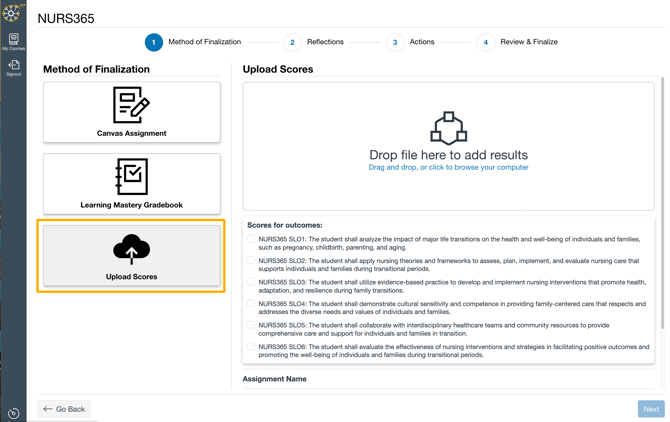
To upload scores for a section:
-
Navigate to your Course Dashboard.
-
Locate the appropriate section card.
-
Select Finalize.
-
Choose Upload Scores as the finalization method.
Requirements Before Downloading the Template
Before you can download a scores template file, all of the following conditions must be met:
Section Requirements
-
The section must have enrolled students.
-
If a section has no students, finalization is blocked and an alert is displayed.
-
Outcome Selection
-
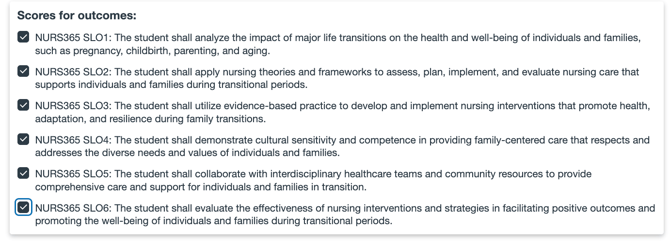
Select one or more outcomes to which scores will be assigned.
Assignment Name

-
Enter an Assignment Name.
-
This value is used to organize data and generate internal identifiers.
-
Important: Any subsequent uploads for the same section must use the exact same assignment name.
-
Rating Scale Selection
-
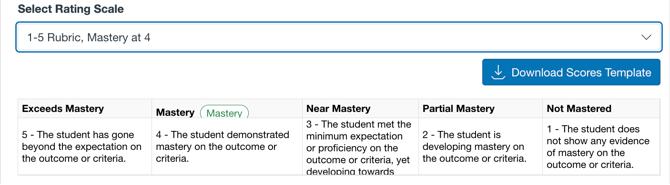
From the dropdown, select a rating scale–to–mastery mapping.
-
Only rating scales common to the selected outcomes are available.
- Scale will appear at the bottom of the page with a green pill next to the level that is identified as mastery.
-
Download and Complete the Scores Template
Once all required fields are completed:
-
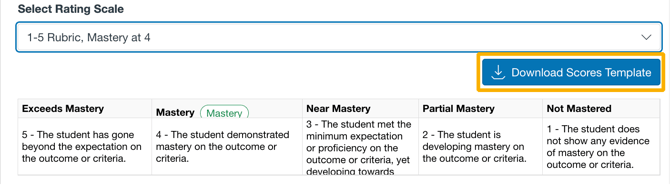
Select Download Scores Template (located above the rating scale preview).
-
A CSV file is generated with:

-
One row per student–outcome combination
-
Example: If six outcomes are selected, each student will have six rows
-
-
Enter values in the Score column. (All scores need to be whole numbers. No fractions or decimals.

-
Mastery and percentage values are calculated automatically by the system.
-
Upload the Completed File
-
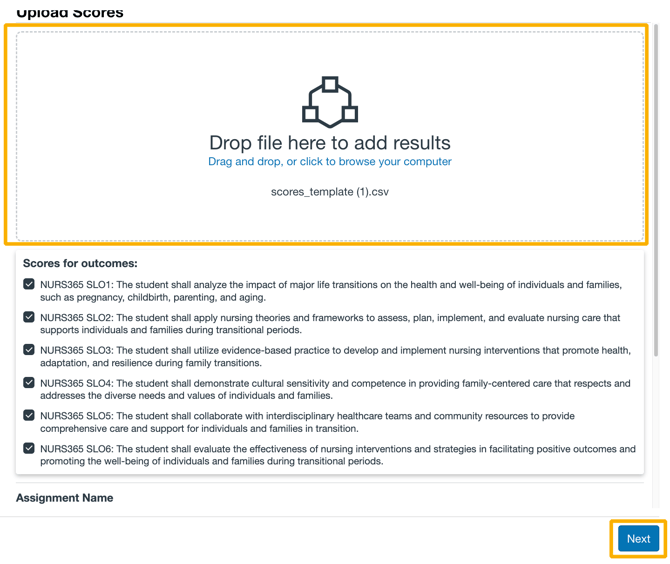
Upload the completed CSV file using the upload option on the finalization screen and click next.
-
If the file contains invalid scores, you will be prompted to correct the file and reupload it.

-
Once accepted, the scores are finalized for the section.
What Happens to Uploaded Scores
Scores uploaded using this method are stored with the following attributes:
-
Canvas ID:
-1 -
Finalized:
true -
Context Type:
file_upload -
Assignment Type: Value entered in the Assignment Name field
These attributes indicate that the results were finalized via file upload rather than sourced directly from Canvas.
Key Notes and Limitations
-
Uploading scores finalizes the results for the section.
-
Subsequent uploads must reuse the same Assignment Name.
-
Sections without students cannot be finalized using this method.