![Insights_horiz-1.png]](https://support.elumenconnect.com/hs-fs/hubfs/Insights_horiz-1.png?height=40&name=Insights_horiz-1.png)
Flagging Courses for Course Copy in Canvas
In this article, you will learn:
- What Course Copy Support does and why it matters
- How to flag your course as copied in Insights
- How to handle notifications about new or updated outcomes
- Best practices for copying courses between different course codes
Prerequisites:
✓ Course Copy Support enabled by your institution
✓ Admin access to your Canvas course
✓ Basic familiarity with Canvas outcomes
What Does Course Copy Support Do?
When Course Copy Support is enabled for your institution, faculty can identify a Canvas course as having been created using copied or imported course content.
When you flag a course as copied, Insights can:
- Recognize that outcomes already present in the Canvas course may have come from the previous course shell
- Account for existing outcomes rather than automatically treating them as new outcomes that still need to be added
- Identify when new outcomes become available for the course
- Identify when new versions of existing outcomes are available
- Distinguish between outcomes you intentionally added and outcomes brought in through copied content
This allows you to continue reusing course materials without unintentionally creating duplicate outcome associations.
Why Should I Flag a Copied Course?
Canvas course-copy processes can carry more than just assignments, pages, and modules. They can also carry Canvas outcomes and their associated alignments. Without knowing that the course was copied, Insights may not have enough information to distinguish between:
✓ An outcome intentionally added to the new course
✓ An outcome that simply came along with imported content
Flagging the course helps Insights properly interpret the outcomes that are already present.
Important Considerations
⚠️ Warning: Review Outcomes Before Assuming They're Appropriate
Flagging a course as copied does NOT automatically make all outcomes appropriate for the new course. You should still review the outcomes and alignments in Canvas, particularly when:
- Content has been copied from a different course
- Content has been copied from a different course code (e.g., COMM 110 → COMM 120)
- You're using institutional or departmental template courses
Action Required: Remove outcomes that do not belong to your specific course to maintain curriculum integrity.
How Do I Flag My Course as a Copied Course?
Prerequisites
Course Copy Support must first be enabled by your institution. If you don't see this option in your Canvas course, contact your institution's Insights administrator.
Step-by-Step Instructions
Step 1: Open Your Canvas Course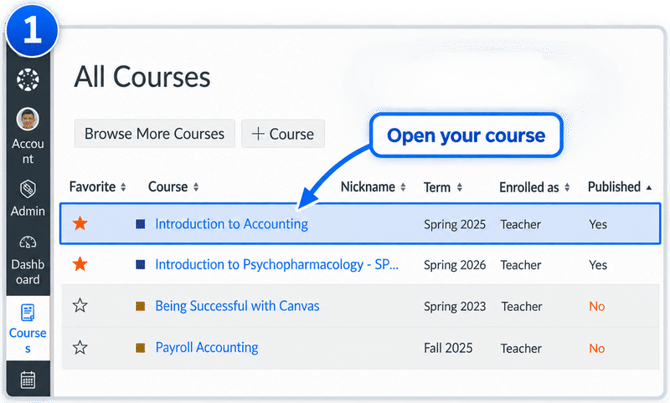
Navigate to your Canvas course by clicking the course name from your course list.
Step 2: Access Insights by eLumen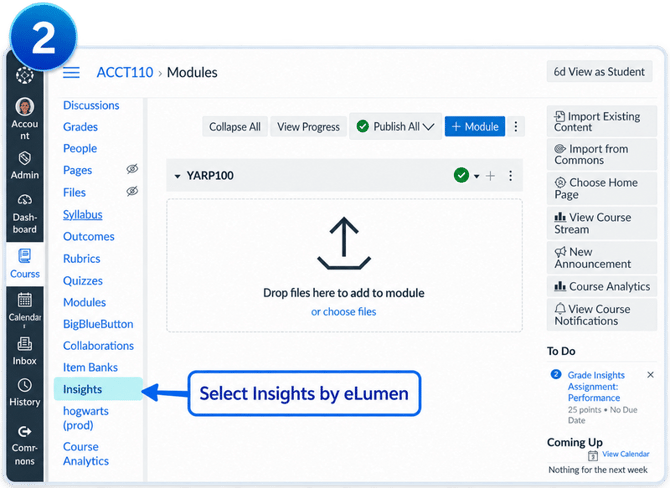
Look for the Insights by eLumen option in your course navigation menu and click to access the Insights experience for your course.
Step 3: Indicate Your Course Is Copied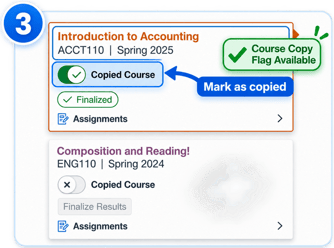
When Insights identifies that your course may contain copied or imported content, indicate that the course is copied or that its content was created using a course import by toggling the appropriate option.
Step 4: Review Insights Notifications
Review any notifications from Insights regarding new outcomes or new versions of existing outcomes that may need to be added or updated to your course.
Quick Reference: When to Mark a Course as Copied
-
You generally only need to identify the course as copied when its content was created by copying or importing material from another Canvas course.
-
Mark as Copied When: ✓ You used Canvas's course copy feature ✓ You imported content from another course ✓ Your course was created from an institutional template
-
Do NOT Mark as Copied When: ✗ You manually created all content from scratch ✗ You only imported individual assignments (not the course structure)
Special Considerations for Different Courses
Copying Between Different Course Codes
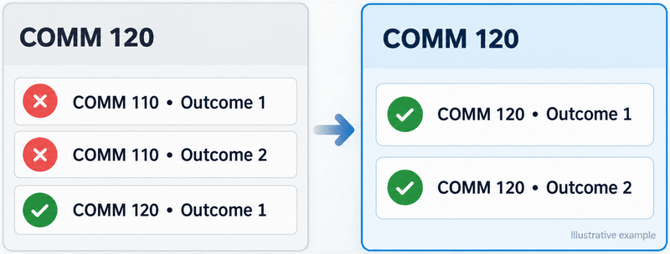
⚠️ Use Additional Caution When Copying Between Different Courses or Course Codes
For example: If content from COMM 110 is copied into COMM 120, Canvas may carry the COMM 110 outcomes into the COMM 120 shell as part of that copy.
Critical Point: Those outcomes do NOT automatically become appropriate for COMM 120 simply because Canvas copied them.
Action Required:
- Navigate to the Outcomes area of your new Canvas course
- Review each outcome carefully
- Remove outcomes that do not belong to your specific course
- Consider your course's unique learning objectives
Using Template Courses
The same consideration applies to institutional or departmental template courses. If outcomes are stored in a template that is copied into many new courses, those outcomes may also be copied into every course created from that template.
Best Practice: Review and customize outcomes for each new course to ensure they align with that specific course's objectives and content.
Course Copy Notifications and Outcome Updates
What Notifications Will You Receive?
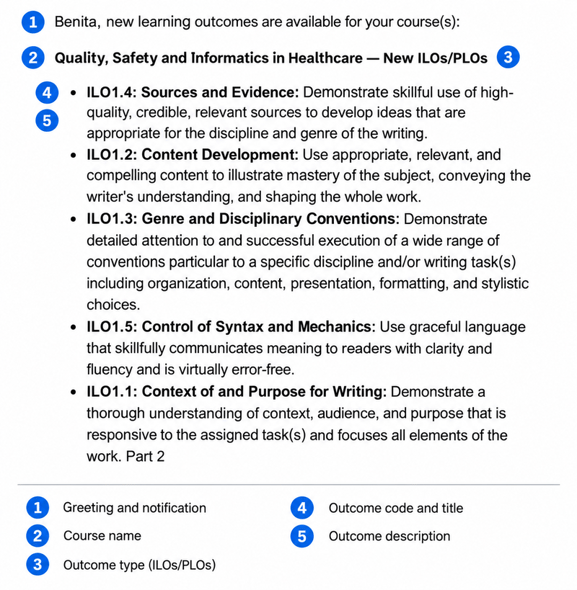
When Course Copy Support is enabled and your course is flagged as copied, you'll receive email notifications when Insights encounters new outcomes or outcome updates available for your copied course.
Notification Timing and Scope
Insights will email you when we encounter an outcome delta for your copied course. Important:
- Notifications are scheduled for the day after new outcomes are processed
- We recalculate the outcome delta before sending to account for Canvas latency
- Only courses in progress or upcoming receive notifications
- Courses that have ended will NOT generate notifications
What You Can Do With These Notifications
After receiving a notification about new or updated outcomes, you have several options:
✓ Pull new outcomes into your Canvas course - Accept and integrate the new outcomes
✓ Update existing outcomes - Adopt new versions of outcomes currently in use
✓ Disable the course copy flag - If you want Insights to trigger a full re-sync
✓ Manually review and select - Choose which new outcomes to add
Outcome Versioning and Copied Courses
⚠️ Important: Outcomes May Need Version Updates
When an institution uses outcome versioning, a copied Canvas course may contain the version of an outcome that was used during an earlier term, not the current version.
What This Means:
- Your course might be using outdated outcome versions
- New versions may contain updated language, criteria, or alignment
- Insights will notify you when versions need updating
Action Required: Review notifications and update outcomes to the intended version for your current course.
What If I Don't See the Course Copy Option?
Course Copy Support is controlled by an Insights feature flag and must be enabled for your institution before the workflow is available.
If you believe your institution is using Course Copy Support but you do not see the option in your Canvas course:
Contact your institution's Insights administrator to:
- Verify that Course Copy Support is enabled for your account
- Check that your user role has access to this feature
- Request feature enablement if it hasn't been activated yet
Summary Checklist
Before Flagging the Course
- ☐ Confirm your course was created via Canvas copy or import
- ☐ Review what outcomes are currently in your Canvas course
- ☐ Identify which outcomes belong to your specific course
- ☐ Note outcomes that came from template courses or other courses
When Flagging the Course
- ☐ Access the Course Copy Support option in Insights
- ☐ Toggle the "Mark as copied course" flag
- ☐ Confirm the flag has been set
- ☐ Note the date you flagged the course
After Flagging the Course
- ☐ Monitor your email for Insights notifications
- ☐ Review notifications when they arrive
- ☐ Decide which new outcomes to add to your course
- ☐ Remove any inappropriate outcomes from previous courses
- ☐ Update outcome versions as needed
- ☐ Save all changes in Canvas
Still Have Questions?
If you need additional help:
- 📧 Email your Insights administrator - Technical questions about Course Copy Support
- 💬 Contact your institution's support team - Questions specific to your institution's policies
- 📖 Review related articles - See the "Related Articles" section above
Best Practices for Course Copy Support
✅ Review all outcomes when your course is first flagged as copied
Outcomes from previous courses or templates may not align with your current course objectives. Make this review a priority before students begin the course.
✅ Compare course codes carefully
If copying between different courses (COMM 110 → COMM 120), verify each outcome belongs in the new course. Don't assume similarity in course numbers means similar outcomes.
✅ Respond to notifications promptly
Monitor your email for outcome delta notifications and review them within 1-2 weeks so you don't miss important updates that could affect your assessment plan.
✅ Update to new outcome versions
When Insights notifies you of new outcome versions, review and update them to ensure your course uses current language and criteria that align with institutional standards.
✅ Document your flagging decisions
Note when you flagged a course and why, especially for template courses you use repeatedly. This creates an audit trail for assessment purposes.
✅ Communicate with colleagues
If multiple instructors teach the same course, ensure everyone understands which outcomes are appropriate and when they were flagged.
Pro Tips from Experienced Faculty
✅ Create a review checklist
Before flagging a course, list all outcomes and mark whether each belongs to your specific course. Save this for future reference.
✅ Schedule a review meeting
For courses using templates or shared outcomes across sections, meet with your assessment coordinator annually to verify alignment.
✅ Keep outcome documentation
Save a snapshot of your outcomes when you flag a course so you can reference what changed over time and identify patterns.
✅ Use the notification emails strategically
Forward outcome update notifications to your department chair or assessment lead for visibility and institutional awareness.
✅ Test before term starts
Flag your course and review notifications 1-2 weeks before the term begins, not during the first week of classes when you're busy with student issues.
Why These Practices Matter
✅ Accurate outcomes ensure your assessment data reflects your actual course learning goals
✅ Timely notifications help you stay current with institutional outcome changes and updates
✅ Regular reviews prevent accidental outcome drift between terms and maintain curriculum consistency
✅ Clear communication prevents duplicate or conflicting outcome usage across course sections
✅ Proper documentation creates accountability and helps with accreditation processes