![Insights_horiz-1.png]](https://support.elumenconnect.com/hs-fs/hubfs/Insights_horiz-1.png?height=40&name=Insights_horiz-1.png)
How do I schedule Canvas result autofinalization?
Auto-finalization is a feature (introduced in August 2026) that automatically finalizes course assessment results via Learning Mastery Gradebook (LMG) at a configurable deadline after a term ends. It ensures assessment data is captured even when faculty don't manually complete the finalization workflow.
Prerequisites
Auto-finalization requires two feature flags to be enabled:
finalize_results_flag(Finalize Results Feature Flag)autofinalization_flag(Auto-finalization Feature Flag)
Please contact your Customer Success Manager (CSM) if these have not yet been enabled for your institution.
Canvas-Backed Sections Only: Only Canvas-backed course sections are eligible for autofinalization. External assessment sections and non-Canvas-backed sections will not autofinalize.
40-Day Eligibility Window: Only unfinalized sections from terms that ended within the last 40 days are considered for autofinalization. Sections from terms ending more than 40 days ago will not be eligible.
What is auto-finalization?
Introduced in the August 2026 release, auto-finalization automatically finalizes course assessment results via LMG at a configurable deadline after a term ends. This eliminates the need for faculty to manually finalize each section while still allowing them to do so before the deadline.
Auto-finalization ensures that data is captured even when faculty don't complete the finalization workflow themselves—particularly for:
- Faculty who were not part of an assessment plan
- Faculty who did not finalize their scores manually
Not a Bulk Finalization Replacement: Auto-finalization is a deadline-driven, section-by-section process that runs daily in the background. It does NOT provide a user interface for selecting and finalizing multiple sections at once. For bulk finalization needs, continue using the manual finalization workflow.
Faculty experience
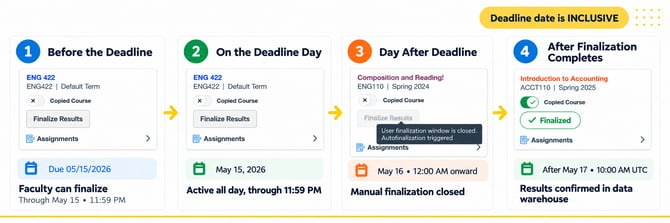
Faculty will see the following on their Course Tile depending on where the deadline falls:
| Timeline | Faculty View |
|---|---|
| Before the deadline | The Finalize Results button is active, with a due date displayed below (e.g., Due 05/15/2026). This date is inclusive—faculty can finalize through the entire deadline day. |
| On the deadline day | The button remains active; faculty can still manually finalize through the entire deadline day (until 11:59 PM). |
| Day after the deadline | The button becomes disabled at midnight (12:00 AM); hovering displays the tooltip: "User finalization window is closed. Autofinalization triggered" |
| After finalization completes | The disabled button is replaced with a green Finalized pill with a checkmark |
Deadline configuration & auto-finalization defaults
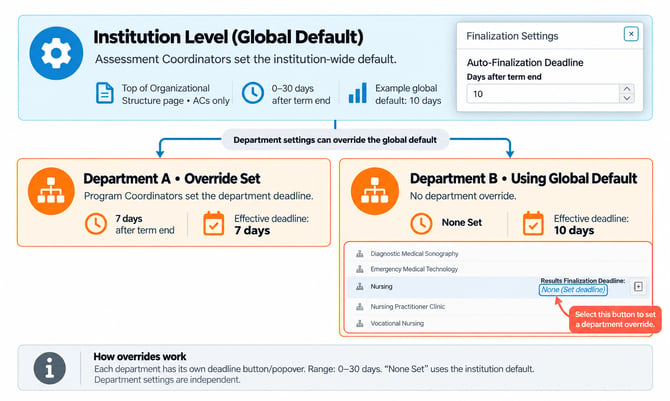
Finalization deadlines are computed as: term end date + configured days
Two levels of configuration are available in the Organizational Structure UI under Finalization Settings:
| Level | Who Can Configure | Configuration Details |
|---|---|---|
| Institution Level (Global Default) | Assessment Coordinators | Can set auto-finalization as a default for the entire institution. This global default is displayed at the top of the Organizational Structure page and is visible only to Assessment Coordinators. If no department-level override is set, departments use this global default. |
| Department Level (Override) | Program Coordinators | Can override the institution-level default for their specific departments. Each academic subject/department has its own deadline button/popover. Range: 0–30 days after term end. If set to "None Set," the department uses the global institutional default. |
Department-Level Configuration and Institution Override (Program Coordinators)
To override the institution default for specific departments:
- Navigate to Setup > Institutional Organization
- Drill to your specific department
- Locate the Results Finalization Deadline field
- Set the number of days after term end (0–30 days) or leave as "None Set" to use the institution default
- Click Save
Key Points:
- Each academic subject/department has its own Results Finalization Deadline setting
- Range: 0–30 days after term end
- If set to "None Set": Department uses the institution-level global default
- Each department setting is independent
Setting finalization reminder notifications
To help minimize the need for auto-finalization in the first place, Coordinators can set up reminder emails to prompt faculty to finalize on their own. This is configured in the Course Review Cycle setup modal on the Course Central screen.
Steps
- Navigate to Course Central
- Select Manage Course Review Cycles
- Open or create a Course Review Cycle
- In the cycle setup modal, configure reminder timing:
| Setting | Result |
|---|---|
| Days Before Term Ends only | Faculty receive: (1) a reminder the set number of days before term ends, and (2) a notification on the last day of term |
| Days After Term Ends only | Faculty receive: (1) a notification on the last day of term, and (2) a reminder the set number of days after term ends |
| Both settings configured | Faculty receive three notifications: advance reminder → day of term end → post-term reminder |
| Neither set | No reminders are sent (optional feature) |
This feature relies on Canvas terms having end_at dates configured. Please confirm your Canvas terms are set up accordingly.
Autofinalization processing timeline
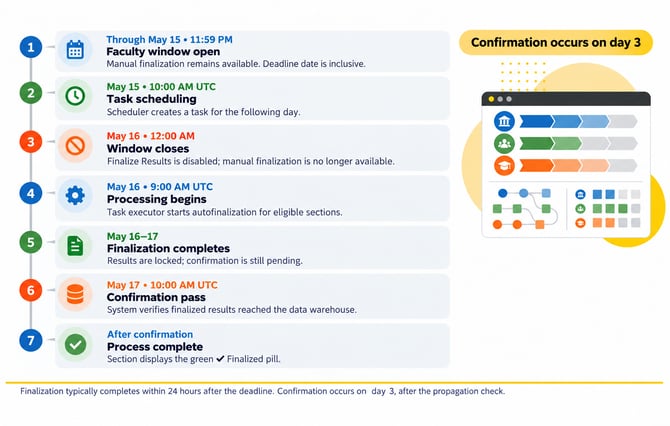 The system follows this schedule for autofinalization:
| Timeline | Action |
|---|---|
| Through deadline day (e.g., May 15) | Faculty can manually finalize; button remains active |
| May 15 – 10:00 AM UTC | Scheduler creates a task for the following day |
| May 16 – 12:00 AM | Button becomes disabled; manual finalization no longer possible |
| May 16 – 9:00 AM UTC | Task executor triggers the finalization workflow |
| May 16–17 | Finalization typically completes within 24 hours after the deadline |
| May 17 – 10:00 AM UTC | System confirmation pass verifies that all finalized results have propagated to the data warehouse |
| After confirmation | Section displays the green Finalized pill |
Processing Confirmation: Finalization typically completes within 24 hours after the deadline, but finalization isn't confirmed until the 3rd day (confirmation pass that verifies that all finalized results propagated to the data lake for a course section).
Key autofinalization behaviors
- Manual finalization takes priority: Once a faculty member manually finalizes a section, it is excluded from autofinalization
- Empty results handling: If no LMG results exist at the time of autofinalization, the section is marked as finalized with 0 results
- Consistent finalization logic: Auto-finalized results use round-down rounding and the same LMG finalization logic as manual finalization
- Retry mechanism: If a section fails to process due to a non-critical error, the system retries on subsequent daily runs. If a major error occurs, the system immediately flags the run for manual review. Sections remaining unprocessable for 7 days without major error are flagged for manual review, and alerts are sent to the platform team for investigation.
- Rollback considerations: Once a section is finalized—manually or automatically—it cannot be automatically unfinalized. Any corrections require manual intervention by an administrator or Assessment Coordinator.
Key considerations and behaviors for finalization
- Point-in-time capture: Finalization captures results at a single point in time — subsequent Canvas changes do not affect stored results
- Longitudinal reporting: Finalized scores are used for all longitudinal and indirect outcome reporting
- Configuration requirements: A rounding method and a rating scale must be selected per outcome before LMG finalization can be submitted
- Rounding method impact: Changing the rounding method clears all rating scale selections
- Binary mastery scale: The binary mastery definition scale must be configured by an AC in Finalization Settings; once configured, it always appears as an available LMG option
- Permanent finalization: Once a section is finalized — manually or automatically — it cannot be automatically unfinalized
- External assessments not supported: External assessment sections and non-Canvas-backed sections will not autofinalize and must be finalized manually if needed
Standard finalization methods (manual)
If faculty are finalizing their own scores before the deadline, they can do so via My Courses > Course Tile > Finalize Results using one of three methods:
| Method | Best For |
|---|---|
| Single Canvas Assessment | Outcomes assessed through one specific assignment |
| Learning Mastery Gradebook (LMG) | Outcomes spread across multiple assignments |
| Upload Scores (CSV) | Outcomes assessed outside of Canvas or via a third-party gradebook |
📖 For more information, see article: How do I finalize scores at the end of the semester?
Feature flag rollout - CANVAS ADMINISTRATORS
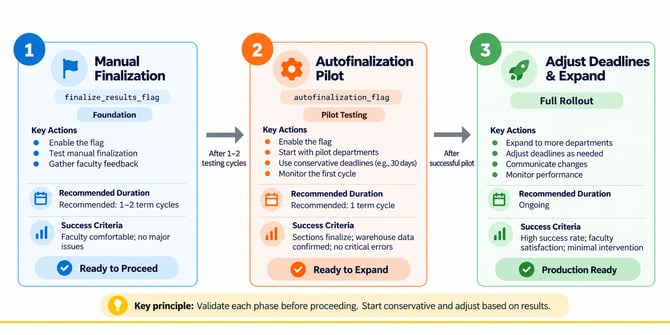 When enabling autofinalization for your institution, follow this recommended sequence:
✅ Phase 1: Enable finalize_results_flag first
-
- Allows faculty to manually finalize scores
- Test the manual finalization workflow with pilot faculty
- Ensure instructors are comfortable with the finalization process
- Recommended duration: 1–2 term cycles
✅ Phase 2: Enable autofinalization_flag
-
- Only after faculty are comfortable with manual finalization
- Start with conservative initial deadlines (e.g., 30 days after term end)
- Begin with pilot departments before institution-wide rollout
- Monitor first autofinalization cycle closely
✅ Phase 3: Adjust deadlines based on results
-
- After successful pilot, gradually expand to more departments
- Adjust deadlines as needed based on faculty feedback
- Communicate any changes clearly to all stakeholders
Key messaging for faculty communication
When communicating about autofinalization deadlines to faculty, emphasize these key points:
✅ "Due 05/15/2026" means May 15 is the last day
-
- Faculty can finalize results through the entire deadline day
- The deadline date is inclusive
✅ "You maintain control until the deadline"
-
- Faculty decide whether and how to finalize before the deadline
- Manual finalization takes priority over autofinalization
- Faculty can choose from three finalization methods
✅ "The system handles it automatically if you don't"
-
- If faculty don't finalize by the deadline, autofinalization processes the results
- No faculty action is required; the system ensures results are finalized
- Results capture the state of the LMG at the time of deadline
✅ "Clear visual feedback at every stage"
-
- Active button with due date before deadline
- Disabled button with explanation after deadline
- Green Finalized pill when complete
Troubleshooting & common questions
Q: A section didn't autofinalize even though the deadline passed. Why?
A: Check the following:
-
- Is the section from a term that ended within the last 40 days? Sections from terms ending more than 40 days ago are not eligible.
- Is the section Canvas-backed? External assessment sections cannot autofinalize.
- Was the section already manually finalized? Manually finalized sections are excluded from autofinalization.
- If none of the above apply, the section may be flagged for manual review due to an error. Contact your platform team.
Q: Can faculty finalize ON the deadline day?
A: Yes. Faculty can finalize results at any time throughout the entire deadline day, including the day itself (through 11:59 PM). The button becomes disabled at midnight (12:00 AM) the following day.
Q: When exactly does the button become disabled?
A: The button becomes disabled at midnight (12:00 AM) on the day AFTER the deadline. For example:
-
- Deadline: May 15
- Button disabled: May 16 at 12:00 AM (midnight between May 15 and May 16)
Q: What happens if there is an error or delay during autofinalization?
A: The system includes redundancy and retry logic:
-
- For non-critical errors: The system automatically retries on subsequent daily runs
- For major errors: The system immediately flags the run for manual review
- For unresolved sections: If a section remains unprocessable for 7 days without major error, it is flagged for manual review, and alerts are sent to the platform team
- Typical resolution: Contact your platform team or Customer Success Manager for investigation
Q: Do external assessment sections get autofinalized?
A: No. Only Canvas-backed course sections are eligible for autofinalization. External assessment sections and non-Canvas-backed sections must be finalized manually if needed.
Q: What if faculty try to finalize after the button is disabled?
A: Once the button becomes disabled, faculty can no longer manually finalize results for that section. The section will be finalized by the autofinalization process (or is already finalized). If corrections are needed after that, an administrator or Assessment Coordinator must intervene manually.
Q: Can autofinalization be "rolled back" or reversed?
A: No. Once a section is finalized—manually or automatically—it cannot be automatically unfinalized. Finalized results are permanent for longitudinal reporting purposes. Any corrections or adjustments require manual administrative action.
Q: How can I confirm that autofinalization completed successfully?
A: Check the data warehouse 2–3 days after the deadline (e.g., May 17 or later for a May 15 deadline) to verify that finalized results are present. The section will display a green Finalized pill with a checkmark. If results are not present, contact your platform team.
Best practices
✅ Configure reminder notifications in advance: Set up reminder emails through the Course Review Cycle setup at least 2–3 weeks before term ends. This proactively notifies faculty and minimizes reliance on autofinalization.
✅ Test with a pilot group first: Before rolling out institution-wide autofinalization, test the feature with one or two departments. This allows you to validate your deadline configurations and gather feedback before full implementation.
✅ Verify Canvas terms are configured correctly: Ensure all Canvas terms have accurate end_at dates. Autofinalization deadlines depend on these configurations, so review them before the term begins.
✅ Communicate deadlines clearly: Send faculty clear communication about the autofinalization deadline, including when the Finalize Results button will become disabled. Include this in course syllabi or welcome announcements.
✅ Set institution-level defaults early: Establish your institution-level autofinalization deadline in Finalization Settings at the start of the academic year. Departments can override as needed, but a clear default reduces confusion.
✅ Monitor the first cycle: During your first autofinalization cycle, check the data warehouse on May 17 (or your deadline + 2 days) to confirm finalized results are present. This ensures the process is working as expected.
✅ Flag sections for manual review: The system automatically flags sections that fail to process after 7 days. Have a documented process to review and resolve these manually.
✅ Document your configuration: Keep a record of your institution-level and department-level deadline settings for reference and troubleshooting.