![Insights_horiz-1.png]](https://support.elumenconnect.com/hs-fs/hubfs/Insights_horiz-1.png?height=40&name=Insights_horiz-1.png)
Creating an Assessment Plan
An Insights Assessment Plan helps streamline the evaluation process by providing a structured, organized framework for assessments. By tying evaluations to specific Cycles and Goals, it ensures assessments remain focused and aligned with key priorities.
The plan promotes accountability and collaboration through designated Approvers and Reviewers, ensuring multiple perspectives are considered. With the ability to integrate tools like Canvas Assessments, Juried Measures, Qualitative Measures, and External Assessments, it supports a well-rounded approach to evaluation—capturing both data-driven insights and descriptive, narrative-based findings to provide a more complete picture of performance.
New in this release: Assessment plans now support optional Goals and Objectives, due dates on measures with automated notifications, rich text formatting in descriptions, the ability to add links and images to instructions, measure-level file uploads for qualitative assessments, improved visibility of assessment status and data collection progress, structured questions in qualitative measures (each with customizable evidence upload requirements), draft versioning and revision history for qualitative responses, the ability for reviewers and approvers to view the history of published responses, coordinator capabilities to view and manage evidence in qualitative measures, and bulk finalization of results for faculty participation tracking.
Prerequisites
⚠️ IMPORTANT: Assessments in Insights must be part of a continuous Assessment Plan process and therefore must belong to a specific Cycle. Before creating an Assessment Plan, ensure a Cycle has been created in Insights.
Next steps:
- Edit an existing cycle listed on the Assessment Plans screen to add assessments to that cycle, or
- Create a new cycle
For guidance, see: How do I create Cycles and Goals for Assessment Plan creation?
Create an Assessment Plan
Step 1: Open Assessment Plans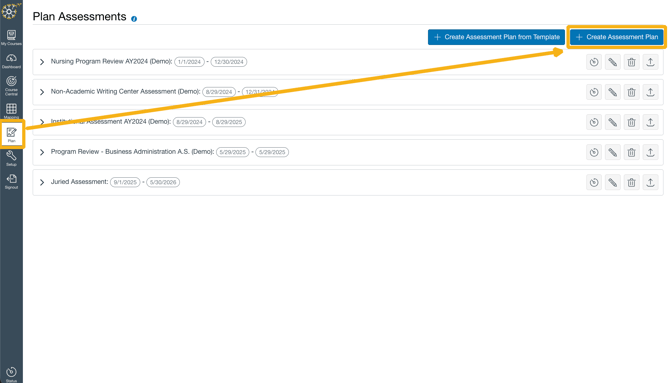
- In Insights, navigate to Plan > Assessment Plans.
- Click the blue + Create Assessment Plan button.
Step 2: Select a Cycle
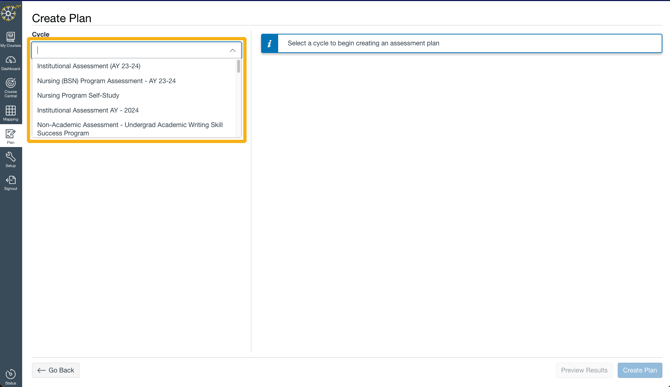
On the Plan Assessments page:
- Click the Cycle dropdown and select the cycle for this assessment plan.
NOTE: Only cycles that are not yet associated with an existing assessment plan will appear in the Cycle dropdown. To add an assessment measure to a cycle that already has a plan, locate the existing plan on the Assessment Plans list and click the pencil icon to edit it. Navigate to the desired section and click + Add Measure to proceed.
Step 3: Configure Plan Options
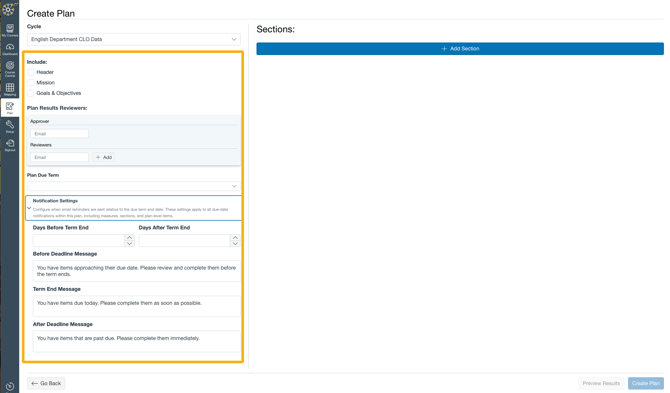
Once you have selected an assessment Cycle, the Create Plan form displays several configuration sections. Configure the following options as needed:
Include
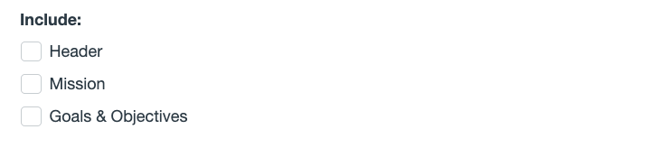
This section allows you to specify what elements will appear in your assessment plan:
| Option | Description |
|---|---|
| Header | Optional. Include a header section at the top of your plan. |
| Mission | Optional. Include your program or institutional mission statement for context. |
| Goals & Objectives | Optional. Include Goals and Objectives from the Cycle to organize and group measures. When enabled, coordinators can view measure status grouped by goals and objectives in the Assessment Plan Status Dashboard. |
To configure:
- Check the boxes for the elements you want to include in your assessment plan
- You can enable or disable these options at any time before deployment
Plan Results Reviewers
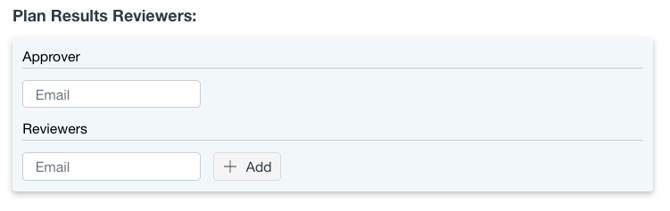
This section allows you to designate an Approver and add one or more Reviewers to the assessment plan. These individuals will have access to the plan results and can contribute to findings and recommendations.
| Role | Description |
|---|---|
| Approver | Optional. Designate one person who will sign off on the plan and its findings. Enter their email address in the Approver field. |
| Reviewers | Optional. Add one or more reviewers who will contribute to Section Findings and Section Recommendations. Reviewers will also receive automated reminder notifications when assigned to qualitative measures (see Notification Settings section below). To add multiple reviewers, enter an email address and click + Add to add another reviewer. |
To configure:
- Enter an email address in the Approver field (optional)
- Enter email addresses in the Reviewers field and click + Add for each additional reviewer (optional)
- Reviewers can be added or removed at any time before deployment
Plan Due Term
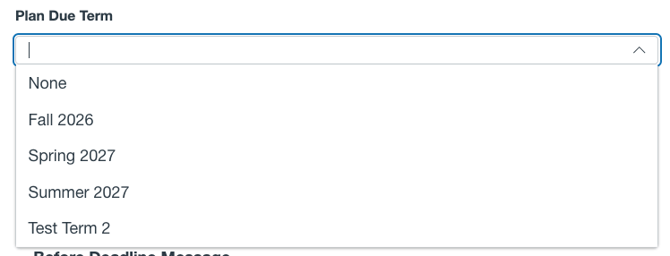
Select the Insights term during which this assessment plan's measures will be due.
To configure:
- Click the Plan Due Term dropdown
- Select the term when qualitative measure work and other assessments are expected to be completed
This due term is used to schedule automated reminder notifications to qualitative measure reviewers (see Notification Settings section below).
Notification Settings
New Feature: Configure automated reminder notifications for qualitative measure reviewers. These plan-level notification settings apply to all due-date notifications within this plan, including measures, sections, and plan-level items.
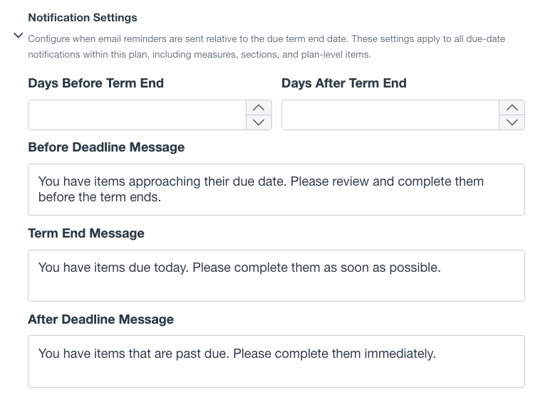
New Feature: Configure automated reminder notifications for qualitative measure reviewers. These plan-level notification settings apply to all due-date notifications within this plan, including measures, sections, and plan-level items.
To configure notifications:
- Check the Notification Settings checkbox to enable this section
- Specify the timing of reminder emails by entering the number of days:
- Days Before Term End — How many days before the Plan Due Term end date should the first reminder be sent? (e.g., "7" for one week before)
- Days After Term End — How many days after the Plan Due Term end date should overdue reminders be sent? (e.g., "7" for one week after)
- Customize the message text for each notification type:
- Before Deadline Message — Text sent before the term end date to remind reviewers of approaching deadlines
- Term End Message — Text sent on the term end date
- After Deadline Message — Text sent after the term end date to notify reviewers that work is now overdue
Example Configuration:
- Days Before Term End: 7
- Days After Term End: 7
- Before Deadline Message: "You have items approaching their due date. Please review and complete them before the term ends."
- Term End Message: "You have items due today. Please complete them as soon as possible."
- After Deadline Message: "You have items that are past due. Please complete them immediately."
How Notifications Work:
Once a plan is created with notification windows configured:
- Automatic Triggers: When qualitative measures are assigned to reviewers and a "due at" Insights term is specified on the measure, reminder notifications are automatically scheduled based on your plan settings.
- Bulk Delivery: If a reviewer is assigned to multiple qualitative measures due in the same term, all notifications for that term will be sent in a single consolidated email rather than separate messages.
- Dynamic Updates: Notification dates automatically update if:
- The end date of the Insights term changes in Setup
- The due term of a qualitative measure is changed (e.g., moved from Fall 2026 to Spring 2026)
- Removal: If a measure's due term is removed, associated notifications are removed from the task list (completed and errored notifications are retained but not resent).
Important Notification Guidelines
⚠️ Timing Considerations:
- Notifications are scheduled to send at 2:00 AM CST
- If a term's end date is today or in the past, Insights will not send "in advance" or "day of" reminders. Only overdue reminders will be sent.
- Reminders that have already been successfully sent will not be resent if the measure due term is later changed.
Example Scenario: If you create a qualitative measure due at the end of Spring 2026 (term end date: April 24, 2026), and today is April 24, 2026:
- ✅ "You're late" reminder will be sent
- ❌ "In advance" reminder will NOT be sent (already past)
- ❌ "Day of" reminder will NOT be sent (already past)
Step 4: Add Sections and Measures
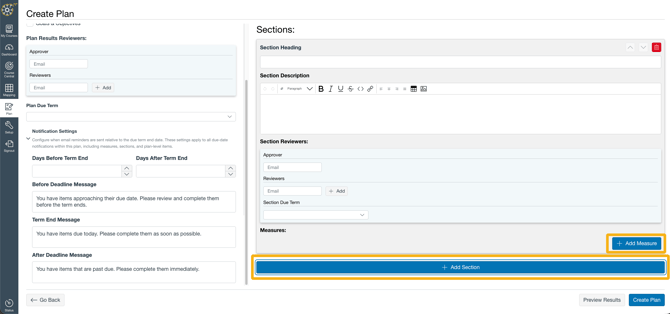
Your Assessment Plan requires at least one section to organize your measures.
- Click + Add Section.
- Enter the section name and description. You can use rich text, links, and images in your description.
- Click + Add Measure.
- From the dropdown menu, select the type of measure you would like to create, then click Build. (See section below: Assessment Measure Types)
Step 5: Save the Assessment Plan
Once all sections and measures are configured:
- Click the blue Create New Plan button.
- ✅ A green confirmation message will display: "Assessment plan successfully created."
The plan is saved as a Draft and can continue to be edited until deployment.
Assessment Measure Types
Insights allows coordinators to choose from four distinct types of assessment measures. Each offers unique approaches to assess student performance and program effectiveness:
Course-Embedded Assessment
Integrates assessments directly into Canvas courses and assignments to measure student progress against learning outcomes. As assignments are graded, results automatically appear on the Insights dashboard, helping educators refine teaching methods and curriculum design.
Features:
- Rubric-based quantitative data collection
- Automatic grade syncing from Canvas
- Rich text instructions with images and links
- Due date management and notifications
- Real-time grading progress visibility
📖 See article: How do I plan course-embedded assessments in Insights?
Juried Assessment
Involves the evaluation of student work by a panel of experts or peers against established criteria and standards. Commonly used in fields requiring expert judgment—such as fine arts, performing arts, or creative writing—this approach ensures students meet industry or discipline-specific expectations.
Features:
- Multi-rater evaluation process
- Customizable rubrics and rating scales
- Evidence artifact submission and review
- Structured feedback from multiple reviewers
📖 See article: How do I plan juried assessments in Insights?
Qualitative Assessment
Takes a descriptive, narrative-based approach to capture aspects of learning that are difficult to quantify, such as depth of knowledge or the broader impact of an educational program on student development.
Features:
- Structured questions with open-ended responses
- Per-question file uploads for evidence
- Rich text responses and formatting
- Draft versioning and revision history
- Narrative findings and recommendations
NEW: Structured Questions in Qualitative Measures
Qualitative measures now support structured questions, allowing coordinators to provide detailed guidance for completing the measure. Each question can have:
- Custom helper text with rich text formatting and embedded links
- Customizable file upload requirements per question
- Clear instructions on what evidence should be submitted
This enables coordinators to create complex qualitative assessments where different questions may require different types or amounts of supporting evidence.
NEW: Draft Versioning and Revision History
Authors of qualitative measure responses can now:
- Save responses as drafts to iterate and refine before submission
- Access revision history to see how responses have evolved
- View the history of published responses
Reviewers and approvers assigned to qualitative measures can:
- See a complete history of published responses
- Track changes made throughout the assessment cycle
- Use historical data for analysis and comparisons
📖 See article: How do I plan qualitative assessments in Insights?
External Assessment
Designed for collecting performance data from areas of an institution without Canvas course shells, such as Practicum, Clinical, or Student Teaching placements, as well as non-academic departments needing to input outcome data.
Features:
- Email-based artifact review (no Canvas shell required)
- Direct evaluator access via emailed links
- Custom rating scales and rubrics
- Flexible evidence submission methods
📖 See article: How do I plan External Assessments in Insights?
Assessment Plan Status Tracking
View Plan Status and Details
Once created, you can monitor and manage your assessment plan from the Assessment Plans list.
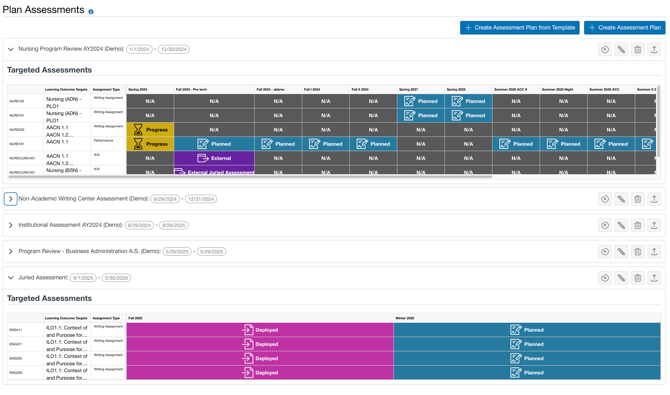
Accessing Plan Information:
- Go to Plan > Assessment Plans.
- Locate your assessment plan.
- Click the right chevron (>) icon to expand the plan and view current status and measure details.
Plan Status Definitions
The status of an assessment plan indicates where it is in the lifecycle:
| Status | Description |
|---|---|
| Planned | The assessment plan has been initially created with specific criteria. No plan assignments exist for this course offering in Canvas until the plan is deployed. |
| Deployed | The assessment plan has been deployed to Canvas, creating corresponding assignments as outlined in the plan's criteria. |
| In Progress | Once an assignment has been scored, the plan is officially in progress and actively gathering data. Note: Once this status is reached, the existing assessment plan can no longer be edited. If changes are needed, a coordinator must delete the existing plan and create a new one. |
| Completed | All courses included in the assessment plan, relative to the term, have been scored and data collection is complete for this stage of the plan. |
| External Assessment | Used for assignments that are not submitted electronically through an integrated LMS — such as high school dual enrollment courses, paintings, or recitals. Evaluators receive emailed links to rate artifacts directly against a rubric. |
| External Juried Assessment | A multi-rater process designed for external evidence. Unlike Canvas Juried Assessments, these typically occur within a single term. Once all assessors have submitted their scores, results, findings, and recommendations are displayed on the Assessment Plan results page. |
Track Cycle Progress
The Assessment Plan Status Dashboard gives coordinators a consolidated, top-down view of an assessment plan's progress, including the status of individual measures, upcoming assessment terms, and deadlines.
To access the Dashboard:
- Go to Plan > Assessment Plans.
- Locate the plan and click the clock icon to Track Cycle Progress.
- Select a subset of measures, add notes, and build a meeting agenda to streamline the data collection process.
📖 For more details: How do I Track Cycle Progress in Insights? (Link when published)
Deploy an Assessment Plan
Once assessments are configured, coordinators can deploy the plan to Canvas to create assignment shells.
Access and Deploy
- Navigate to Plan > Assessment Plans.
- Locate the assessment plan.
- Click the up arrow (↑) icon to deploy it to Canvas.
What Deployment Does
Deploying an assessment plan:
- Creates unpublished assignment shells in faculty's Canvas courses
- Targets only courses that are curriculum mapped to your selected learning outcomes
- Allows faculty to edit assignments before publishing them to students
- Initiates data collection for the assessment cycle
NOTE: Only courses that have been curriculum mapped will be impacted by the deployment.
Assessment Plan Action Icons
Use the following icons to manage your assessment plan:
| Icon | Action | Description |
|---|---|---|
| > (right chevron) | Expand | Expand plan to view current status, measures, and details |
 |
Track Progress | Access the Assessment Plan Status Dashboard to monitor plan progress |
 |
Edit | Edit or view plan details |
 |
Delete | Delete the assessment plan |
 |
Deploy | Deploy the assessment plan to Canvas |
Drafts and Versions
New assessment plans are saved as Drafts, allowing you to review and refine them before deployment to Canvas.
- Each user assigned to a plan can have one active draft at a time
- Insights displays the user, date, and time of the most recent draft update
- Continue editing the draft as needed, or delete it if it is no longer required
- NEW: Track response versions and revision history for qualitative measures (see Qualitative Assessment section above)
Caution: Once a plan is deployed to Canvas, version history is not displayed in final reports. Document any significant changes to the plan configuration in your assessment plan notes.
Best Practices
✅ Define clear learning outcomes — Connect each measure to specific learning outcomes to ensure assessment data directly aligns with program goals.
✅ Use optional Goals and Objectives — Enable Goals & Objectives to organize measures thematically and make results analysis easier during review meetings.
✅ Assign Approvers and Reviewers — Designate multiple stakeholders to promote accountability and ensure diverse perspectives are considered in findings and recommendations.
✅ Leverage rich text and visuals — Use rich text formatting, links, and images in section descriptions and measure instructions to clarify expectations for faculty and evaluators.
✅ Set realistic due dates — Configure due dates on measures with automated notifications to keep faculty and reviewers on track throughout the assessment cycle.
✅ Use structured questions for complex assessments — (New) Leverage structured questions in qualitative measures to provide clear guidance and customizable evidence requirements for each question.
✅ Monitor draft responses — (New) Use revision history to track how qualitative responses evolve and ensure coordinators can manage evidence and responses effectively.
✅ Mix assessment types — Combine course-embedded assessments with qualitative, juried, and external measures to gather comprehensive evidence of student learning.
✅ Deploy early in the term — Allow faculty sufficient time to prepare, edit, and publish assignments before students begin work.
✅ Monitor data collection status — Use the Assessment Plan Status Dashboard to track grading progress and identify measures that may need follow-up reminders.
✅ Manage faculty participation — (New) Use bulk finalization capabilities to track and finalize results for faculty who did not complete scoring, ensuring comprehensive data collection.
✅ Plan proactively — Create assessment plans at the start of your planning cycle rather than reactively as deadlines approach.
✅ Close the loop — Document resulting actions such as course improvements or program changes based on assessment findings. Share outcomes with faculty and stakeholders.
Additional Resources
- How do I create Cycles and Goals for Assessment Plan creation?
- How do I plan course-embedded assessments in Insights?
- How do I plan juried assessments in Insights?
- How do I plan qualitative assessments in Insights?
- How do I plan External Assessments in Insights?
- How do I Track Cycle Progress in Insights? - Link when Published
Frequently Asked Questions
Q: Can I add assessment measures to a cycle that already has an assessment plan? A: Yes. Locate the existing plan on the Assessment Plans list and click the pencil icon to edit it. Navigate to the desired section and click + Add Measure to add additional assessments to that cycle.
Q: Is there a limit to how many assessment plans I can create? A: No. There is no limit to the number of assessment plans that can be created in Insights.
Q: What happens after I deploy an assessment plan? A: Deployment creates unpublished assignment shells in targeted Canvas courses. Faculty can then edit the assignment title, details, and instructions using Canvas's rich text editor before publishing to students.
Q: Can I edit an assessment plan after it has been deployed? A: Once measures begin collecting data (status changes to "In Progress"), the existing plan can no longer be edited. If significant changes are needed, create a new plan for the next assessment cycle.
Q: How do I add images to my assessment plan sections and measures? A: When creating or editing section descriptions and measure instructions, click the image icon in the rich text editor toolbar. Upload your image file (PNG or JPG, under 500 KB). Be sure to add a descriptive caption and alt text for accessibility.
Q: What types of images work best in assessment plans? A: Effective images include rubric examples, assignment workflow diagrams, grading guidelines with annotated examples, process flowcharts, program standards, and Canvas assignment screenshots. Avoid generic decorative images; focus on visuals that directly support understanding of assessment expectations.